Forward logs to Graylog
Learn how to configure your Stackhero instances to forward system logs to Graylog for centralised log management.
Introduction
Graylog provides a robust and user-friendly platform for managing system logs. It streamlines the collection, organisation, and analysis of logs while offering features such as Slack and email notifications, customisable dashboards, and a powerful query interface. This makes it an excellent tool for enhancing system monitoring, strengthening security, and simplifying troubleshooting processes.
By configuring your Stackhero instances to forward logs to a Graylog server, you can centralise log management, thereby improving the efficiency and effectiveness of your system monitoring efforts.
Setting up Graylog to receive logs
Follow these steps to configure Graylog for receiving logs:
- Log in to your Graylog web interface.
- Navigate to System > Inputs.
- From the Select input dropdown, choose GELF HTTP.
- Enable the Global option.
- Assign a descriptive name to the input, such as "GELF HTTPS".
- Save the configuration settings.
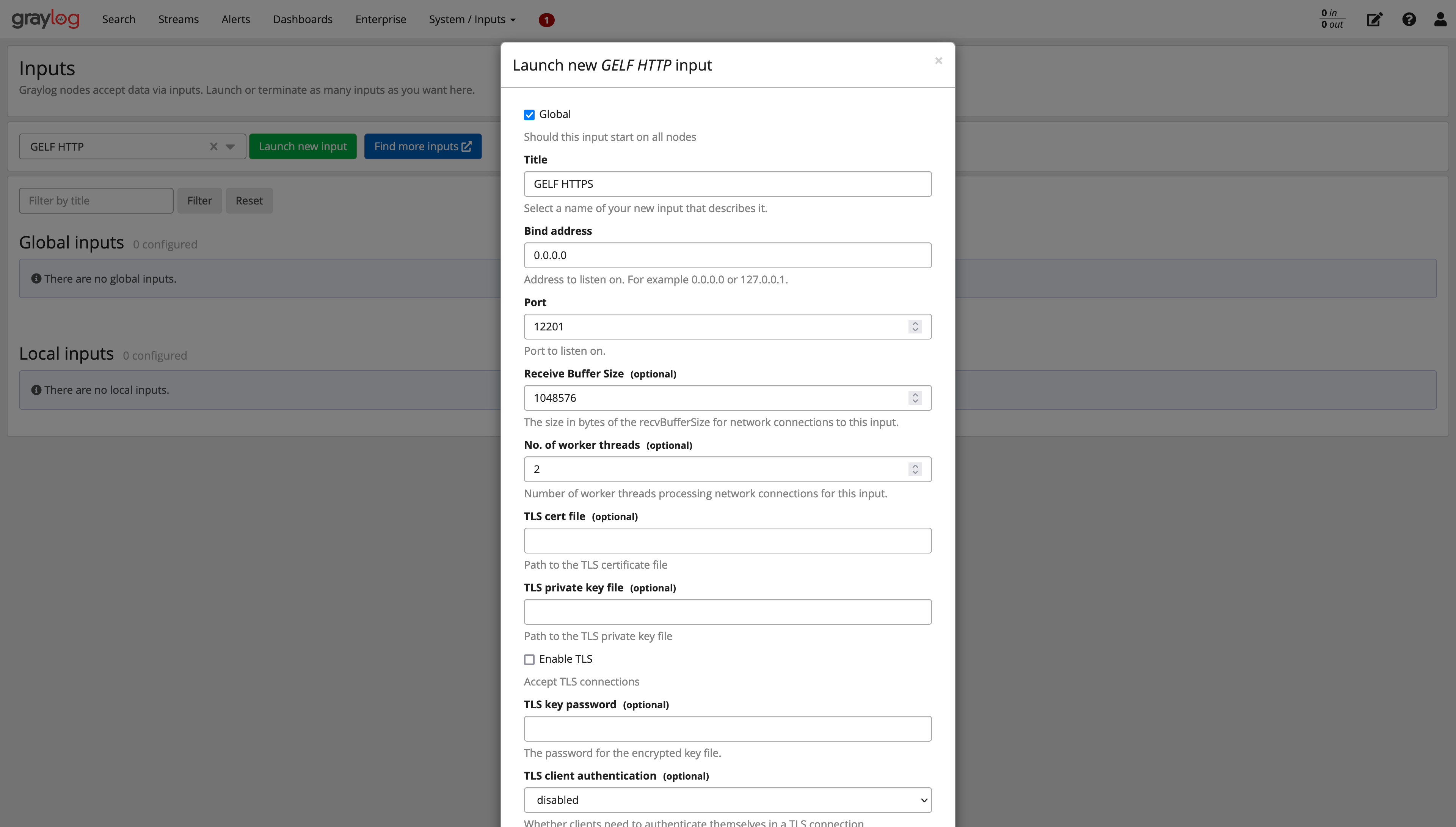 Graylog GELF HTTP Input Configuration
Next, verify the input port settings in your Stackhero dashboard:
- Access your Stackhero dashboard.
- Navigate to the configuration page for your Graylog service.
- Select Configure.
- Confirm that port 12201 is enabled for both TCP and TLS under the Input Ports section. Adjust settings if needed.
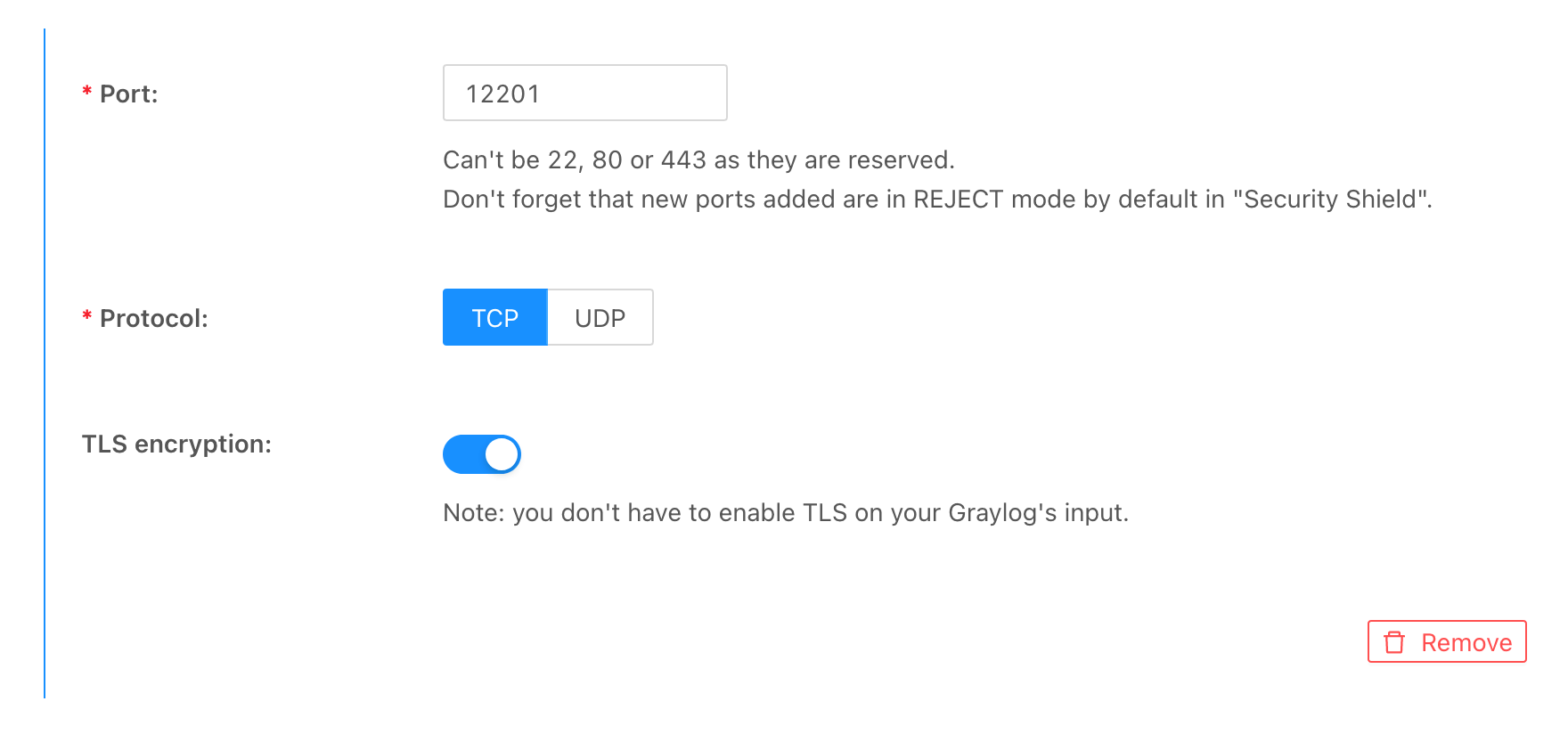 Activating TLS on Port 12201 in Graylog
Your Graylog instance is now ready to receive logs from Stackhero.
Configuring your Stackhero instance to send logs to Graylog
To set up a Stackhero instance to forward logs to Graylog:
- Log in to the Stackhero dashboard.
- Navigate to the service instance you wish to configure.
- Select the Logs Forwarder tab.
- Enter your Graylog domain in the Graylog Domain field (e.g.,
<XXXXXX>.stackhero-network.comor your custom domain). - Set the Graylog Port to
12201. - Save the configuration settings.
Once these configurations are saved, your Stackhero instance will begin forwarding logs to your Graylog server.
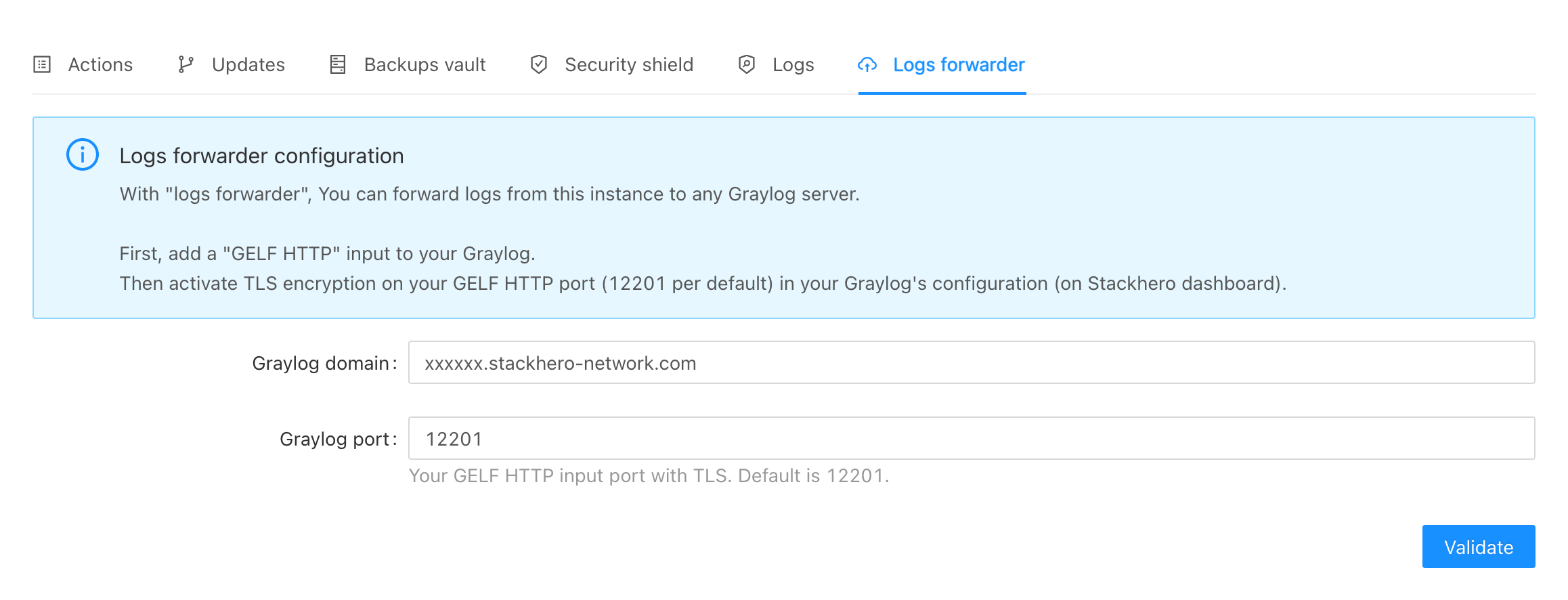 Stackhero Logs Forwarder Configuration
Verifying log forwarding
To ensure that logs are being forwarded correctly:
- Open the Graylog web interface.
- Navigate to the Search section.
- Enter a query, such as "logs from".
- Look for log entries from your instance (e.g., "Logs from svc-xxxxxx") sent to
<XXXXXX>.stackhero-network.com:12201.
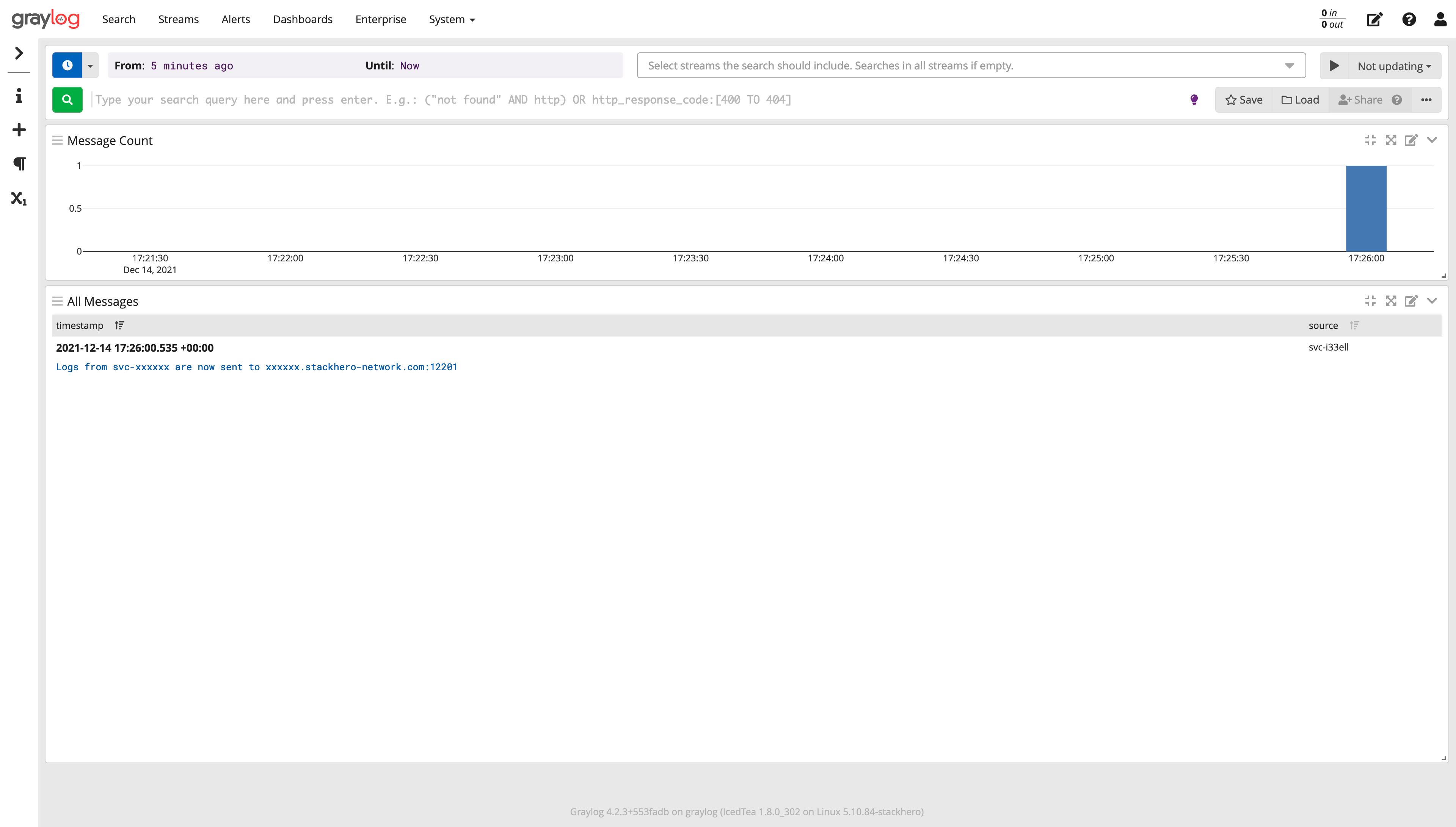 Graylog Receiving Logs Example
Congratulations! Your Stackhero instances are now successfully forwarding logs to your Graylog server. This setup enables centralised and scalable log monitoring and analysis.