 Graylog: Configure inputs
How to configure Graylog inputs
👋 Welcome to the Stackhero documentation!
Stackhero offers a ready-to-use Graylog cloud solution that provides a host of benefits, including:
- Unlimited and dedicated SMTP email server included.
- Effortless updates with just a click.
- Customisable domain name secured with HTTPS (for example, https://logs.your-company.com).
- Optimal performance and robust security powered by a private and dedicated VM.
Save time and simplify your life: it only takes 5 minutes to try Stackhero's Graylog cloud hosting solution!
What is a Graylog input
Graylog ingests logs from your applications, servers, routers, or switches using one or more inputs. These inputs support TCP or UDP protocols and can handle various data formats such as GELF, CEF, Syslog, or RAW. TLS encryption (SSL/HTTPS) can be activated in the Stackhero dashboard for TCP inputs.
Note that you can also connect to a Kafka or a RabbitMQ (AMQP) server. In this scenario, Graylog will connect directly to your Kafka or RabbitMQ server, and you will not need to follow this guide.
If you don't know which kind of input you should use, first read our "Choose inputs types" guide.
How to create an input on Graylog
To set up your Graylog input, you first need to create it on the Graylog web UI. Afterwards, declare the input on the Stackhero dashboard and open the necessary firewall port(s) to allow traffic to reach your instance.
1. Declare the input on Graylog web UI
-
Connect to your Graylog web UI and navigate to
System, thenInputs. -
In the
Select inputdropdown, choose an input based on the type of data you will receive and clickLaunch new input.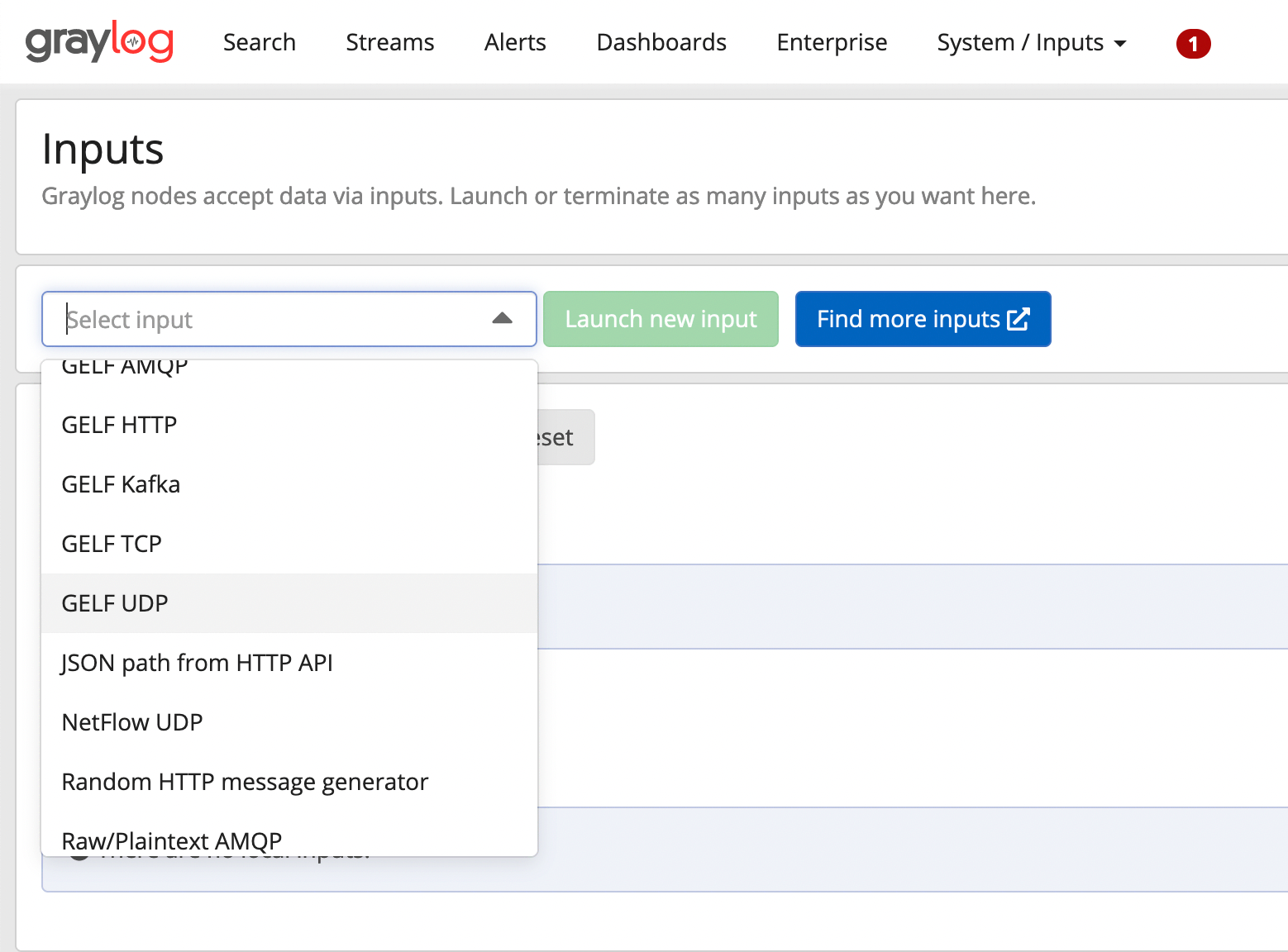 Selecting an input on Graylog web UI
 -
In the modal that opens, check
Globaland assign a title (for example, "GELF UDP" if you do not have a more specific title). Avoid altering any other settings unless you are certain about the changes.
If you plan to use TLS encryption (SSL/HTTPS), DO NOT select TLS in the Graylog web UI. TLS encryption is managed directly by your reverse proxy through the Stackhero dashboard.
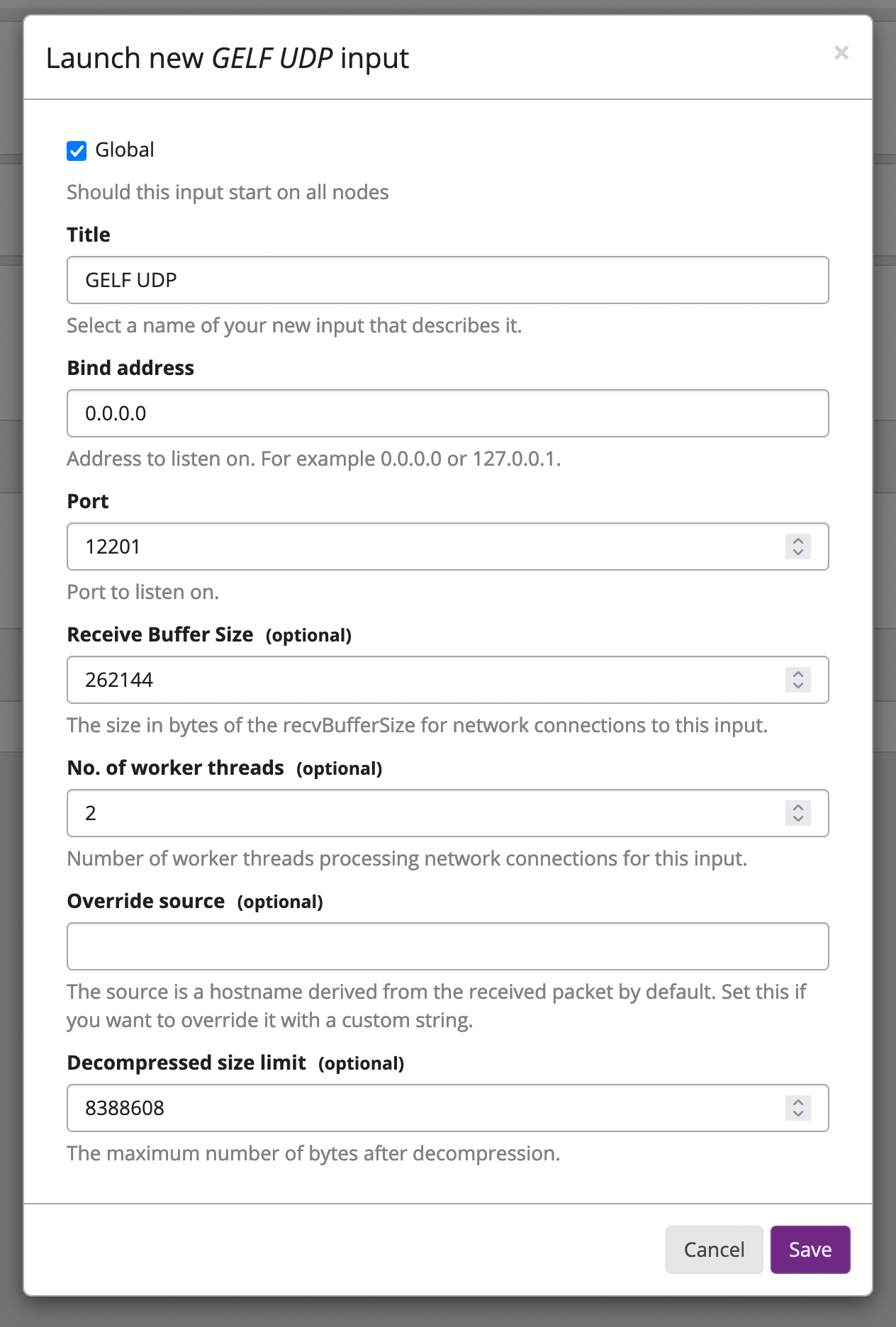 Example of a GELF UDP input in Graylog
- Note the port of your input as you will need to specify it on the Stackhero dashboard later. Then, click
Save.
2. Declare the input on Stackhero
After creating the input on the Graylog web UI, you need to declare it on the Stackhero dashboard.
- Go to your Stackhero dashboard and select your Graylog instance.
- Click on the
Configurebutton. - In the
Input portslist, check if the port of your new input is declared. If not, add it. - Verify the protocol type (UDP or TCP). If you use TCP, you can enable TLS encryption (SSL/HTTPS) by checking the corresponding option (remember that you should not enable TLS on the Graylog web UI!).
- Once you have completed these steps, validate your new configuration.
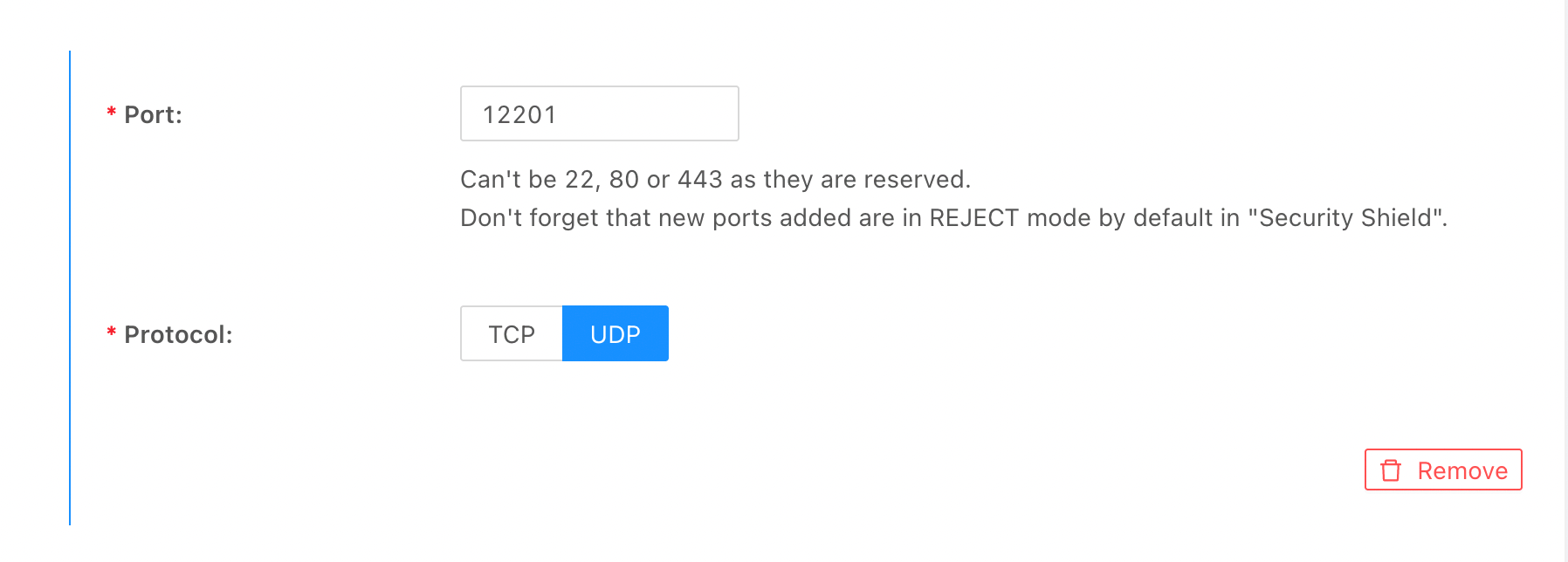 Example of a GELF UDP input configuration on Stackhero
3. Allow traffic on the firewall
Finally, after declaring your input on the Stackhero dashboard, you need to allow the traffic through your firewall.
- Go to the Stackhero dashboard, select your Graylog service, and click on
Firewall. - Ensure there is a rule accepting traffic from your IP (or use
0.0.0.0/0to allow any IP). - If such a rule does not exist, create one by clicking the
Add a rulebutton. - Select the IP you want to allow (set it to
0.0.0.0/0for any IP), and specify the ports that will receive data from this IP. - Choose the
Acceptaction.
Save the rule and validate the configuration by clicking the Validate button.
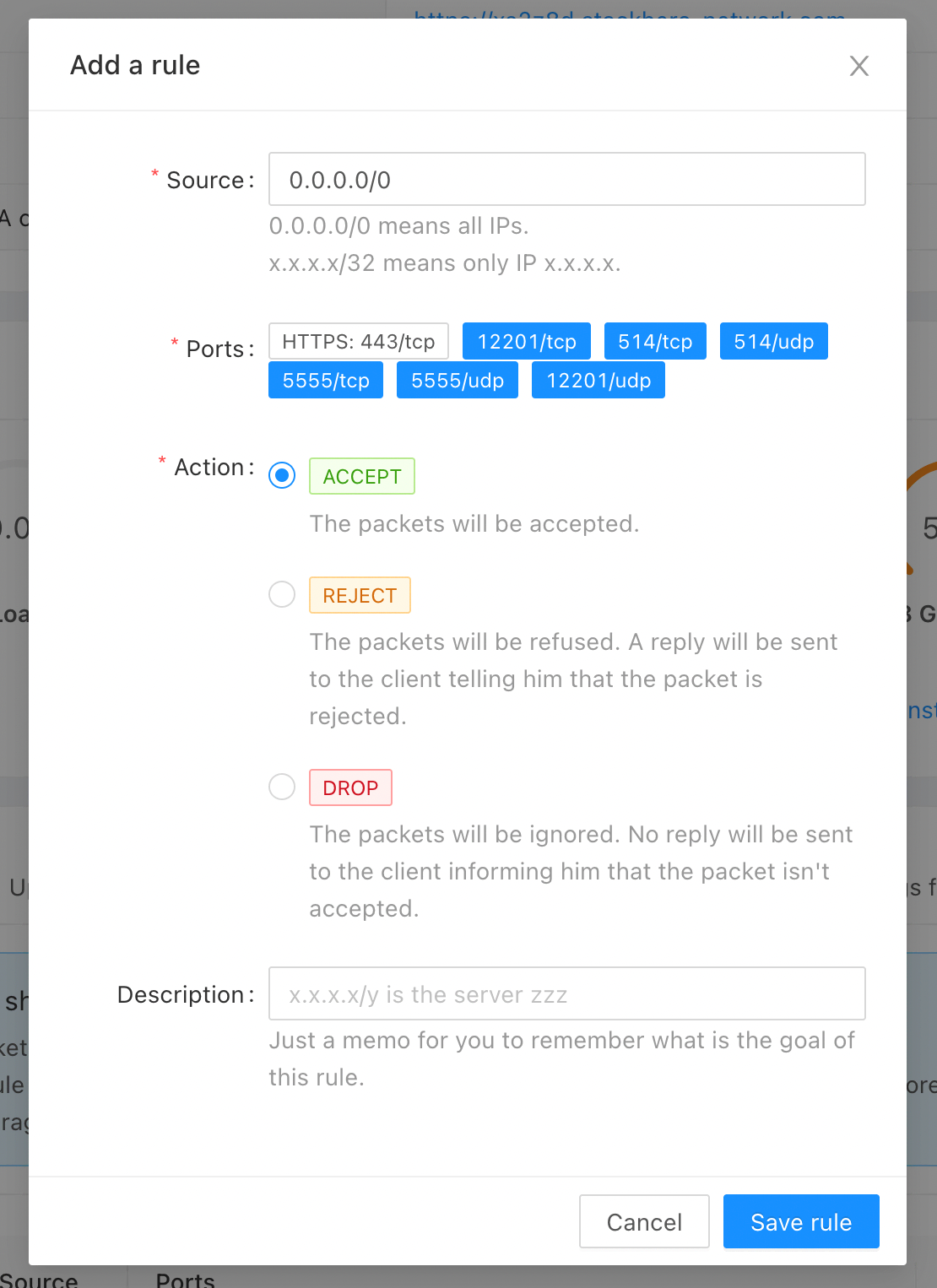 Example of a firewall configuration
Your input is now fully configured and ready for use!
Troubleshooting: a Graylog input doesn't work
If a Graylog input does not work as expected, review the following checklist:
-
On the Graylog web UI:
- Go to
SystemthenInputsand confirm that the input is running. - Verify the protocol (UDP or TCP) is correct.
- If using TCP, ensure that
tls_enableis set tofalsesince encryption is managed on the Stackhero dashboard. - Confirm that the port is correct.
- Verify that the data format is accurate (GELF, CEF, RAW, or Syslog).
- Go to
-
On the Stackhero dashboard:
- Select your Graylog instance and click the
Configurebutton. - In the
Input portslist, ensure that the port is defined with the proper protocol (UDP or TCP). - If using TCP, confirm that the TLS option is enabled for encryption (SSL/HTTPS).
- Select your Graylog instance and click the
-
On the firewall:
- In the Stackhero dashboard, select your Graylog instance and click on the
Firewalltab. - Ensure there is a rule accepting traffic for the input port and protocol. If you want to allow any IP, set the IP field to
0.0.0.0/0.
- In the Stackhero dashboard, select your Graylog instance and click on the
By following this checklist, there should be no reason for the input to fail.