 MySQL: Configure GUIs
How to connect graphical interfaces to MySQL
👋 Welcome to the Stackhero documentation!
Stackhero offers a ready-to-use MySQL cloud solution that provides a host of benefits, including:
- Unlimited connections and transfers.
- phpMyAdmin web UI included.
- Effortless updates with just a click.
- Optimal performance and robust security powered by a private and dedicated VM.
Save time and simplify your life: it only takes 5 minutes to try Stackhero's MySQL cloud hosting solution!
Connecting Tableau to MySQL
Tableau is a powerful visual analytics platform that allows you to create dynamic dashboards by connecting directly to your MySQL database.
To connect Tableau to MySQL:
- Open Tableau and start a new connection.
- Select MySQL as your data source.
- Enter the necessary credentials: server host address, username, password, and port number.
- Confirm the connection. Tableau uses SSL by default to ensure secure communication.
If you encounter an error like "SSL connection error: unknown error number", consider enabling the "Support old TLS version" option in the MySQL service configuration on the Stackhero dashboard to resolve the issue.
Connecting HeidiSQL to MySQL
HeidiSQL is a lightweight, user-friendly database management tool. Here is how you can configure it to connect to MySQL:
- Launch HeidiSQL and create a new session.
- Fill in the required fields: Hostname, User, Password, and Port.
- Ensure the Library setting is set to
libmariadb.dll.
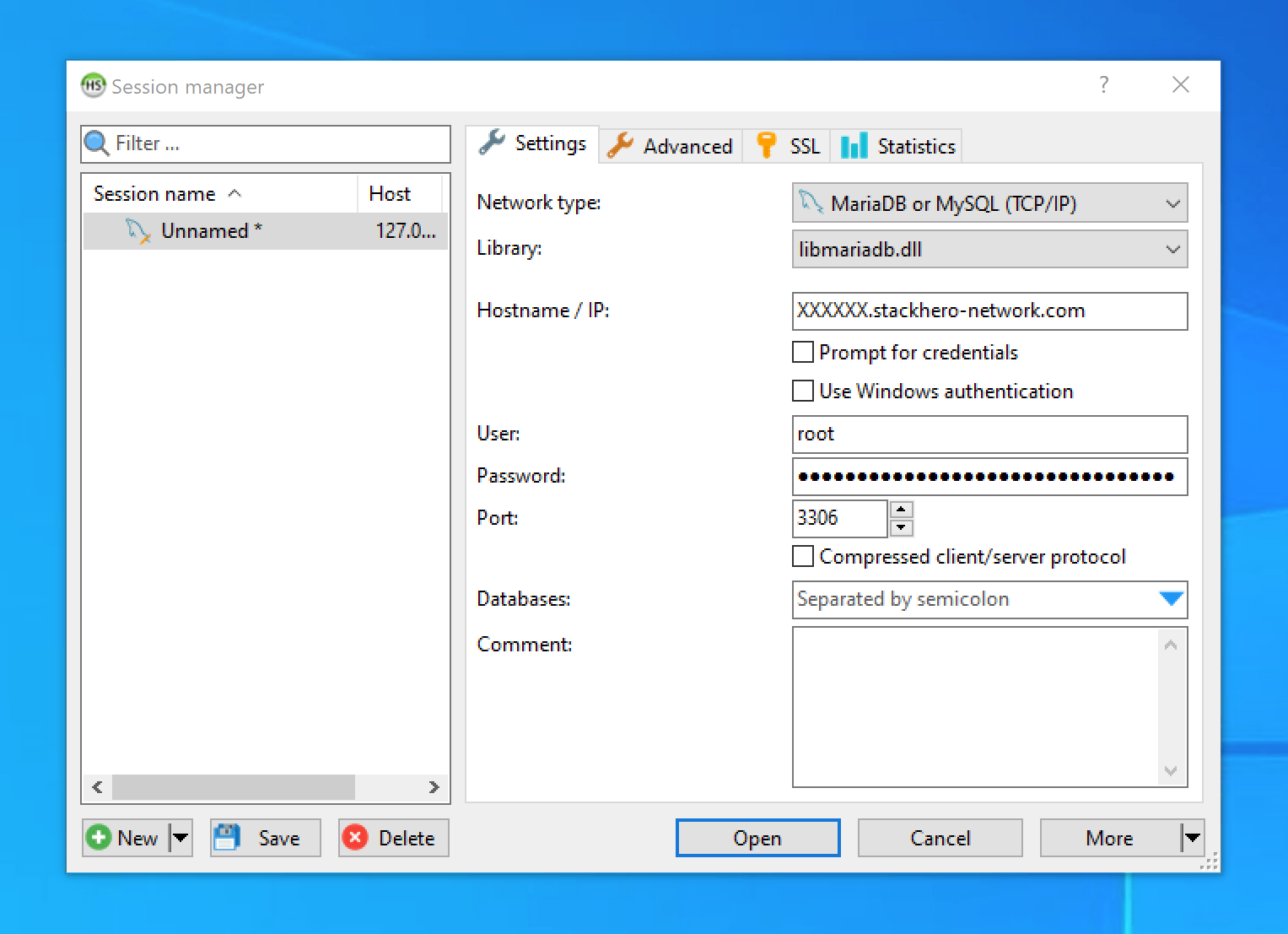 HeidiSQL Configuration Example
To enable SSL encryption:
- Go to the SSL tab.
- Enable the Use SSL option.
Stackhero employs TLS certificates issued by trusted Certificate Authorities (CAs), so no additional certificates need to be imported.
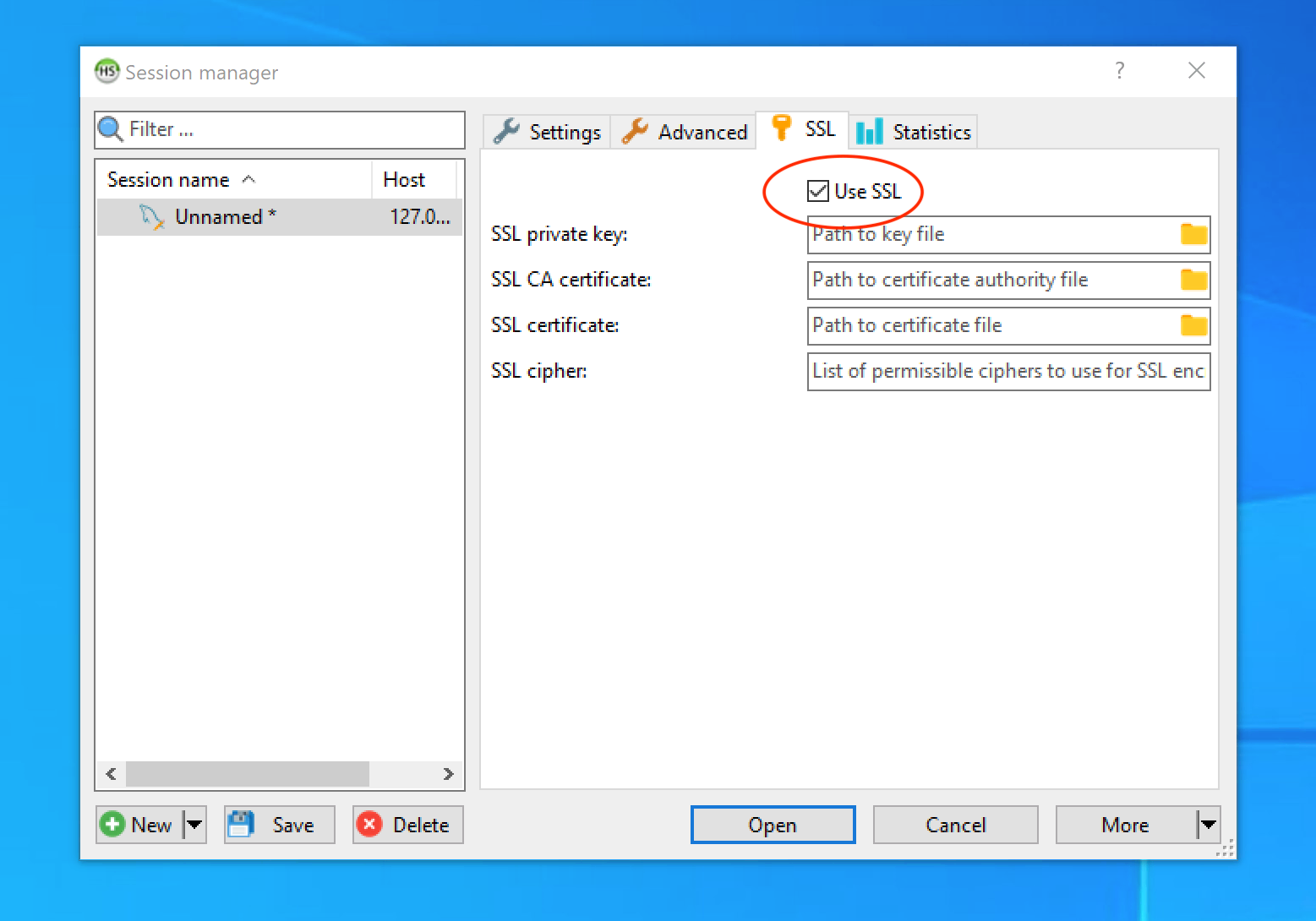 Enable SSL/TLS Encryption in HeidiSQL
Troubleshooting authentication issues
When using libmariadb.dll, HeidiSQL supports advanced TLS ciphers but may face compatibility issues with MySQL's default "Caching SHA2 password" authentication plugin. If you receive an "Access denied" error, try the following solutions:
- For the
rootuser, change the authentication plugin to MySQL native password using the Stackhero dashboard. - For other users, modify the authentication plugin through
phpMyAdmin.
 Set MySQL Authentication Plugin
Connecting Sequel Pro to MySQL
Sequel Pro, while previously popular, has not been updated since 2016. It relies on outdated TLS versions that are incompatible with recent MySQL and MariaDB releases.
A community-driven fork, Sequel Ace, has taken its place. Actively maintained and open-source, Sequel Ace provides similar functionality. Learn more on GitHub or download it from the Apple App Store.
Connecting Sequel Ace to MySQL
Sequel Ace offers a straightforward interface for connecting to MySQL:
- Open Sequel Ace and create a new connection.
- Fill in the details: Host, Username, Password, and Port.
- Enable the Require SSL option to secure the connection.
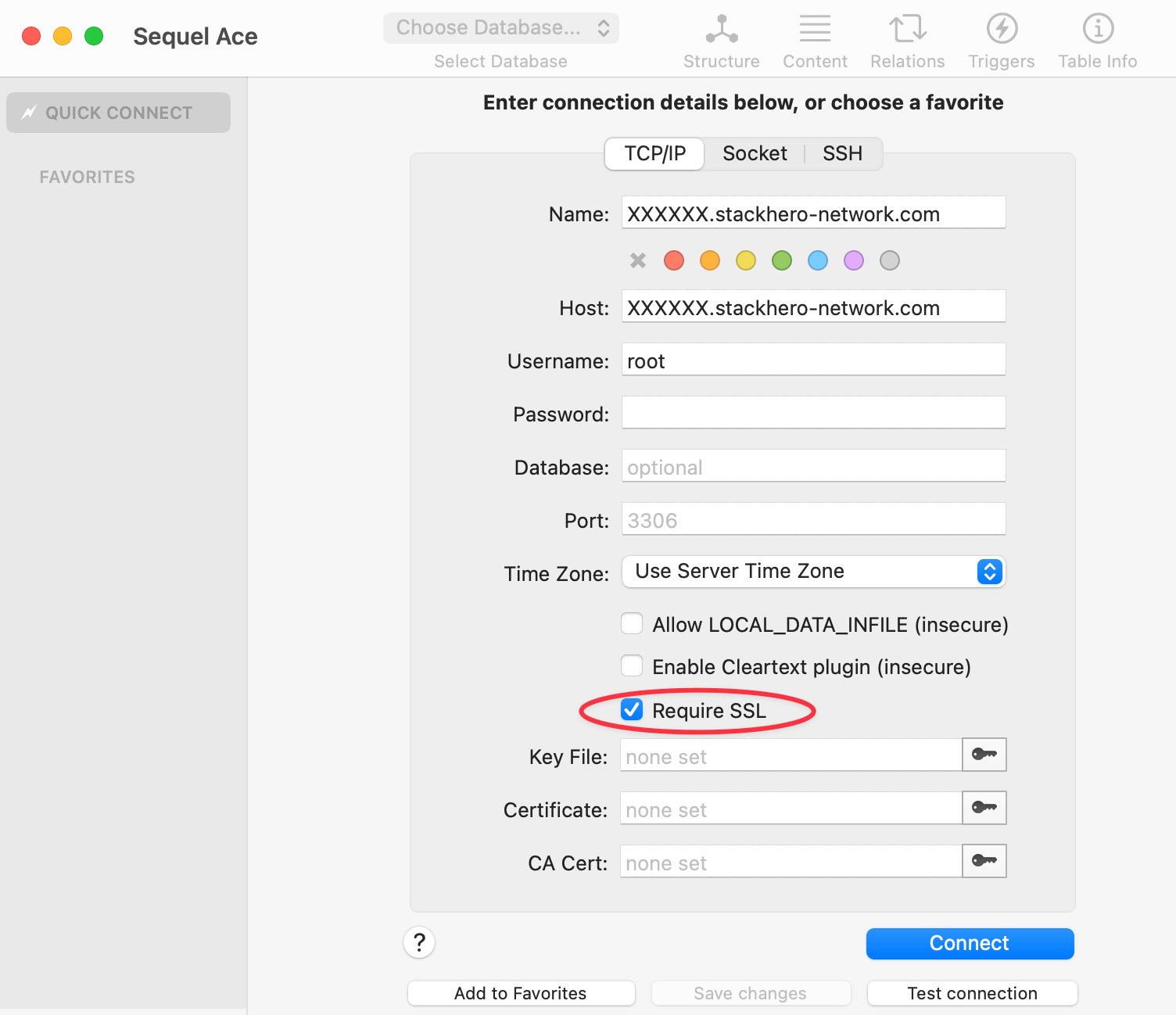 Sequel Ace Configuration Example