 MariaDB: Configure GUIs
How to connect graphical interfaces to MariaDB
👋 Welcome to the Stackhero documentation!
Stackhero offers a ready-to-use MariaDB cloud solution that provides a host of benefits, including:
- Unlimited connections and transfers.
- phpMyAdmin web UI included.
- Effortless updates with just a click.
- Optimal performance and robust security powered by a private and dedicated VM.
Save time and simplify your life: it only takes 5 minutes to try Stackhero's MariaDB cloud hosting solution!
Connecting Tableau to MariaDB
Tableau offers an intuitive way to create insightful dashboards by linking it to your MariaDB database.
To get started with Tableau:
- Launch Tableau and initiate a new connection.
- Choose MariaDB as your database type.
- Provide the necessary details:
- Host server
- Username
- Password
- Port
- Test the connection to ensure it is working.
By default, the connection is made using SSL. If you encounter the
SSL connection error: unknown error number, navigate to the MariaDB service configuration in the Stackhero dashboard and enable the "Support old TLS version" option.
Connecting HeidiSQL to MariaDB
Follow these steps to connect HeidiSQL to MariaDB:
- Open HeidiSQL and start a new session.
- Enter the following information:
- Hostname
- User
- Password
- Port
- Ensure the default library is set to
libmariadb.dll.
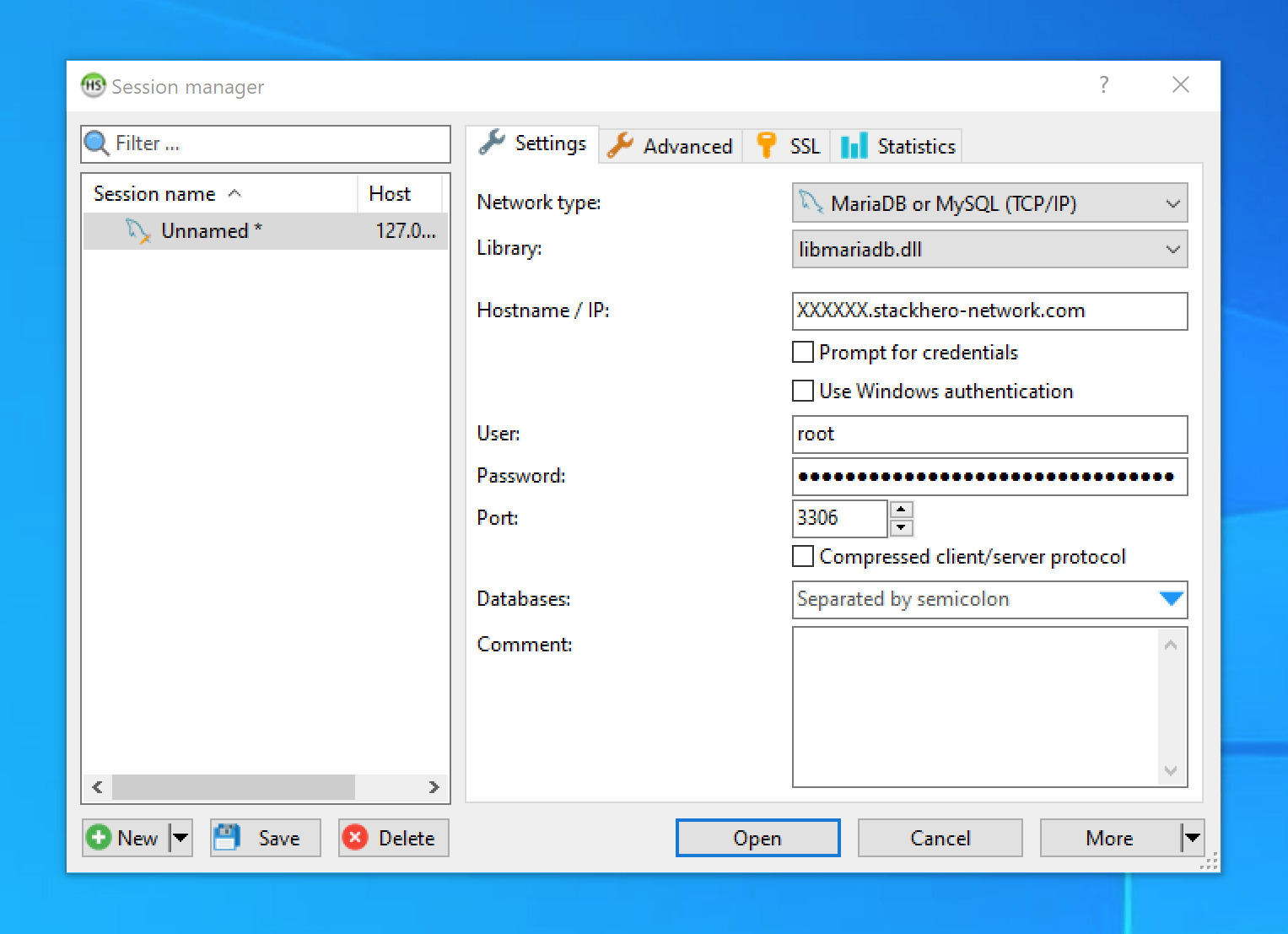 HeidiSQL configuration prompt
Enabling SSL/TLS encryption in HeidiSQL
- Go to the
SSLtab. - Check the
Use SSLoption.
note There is no need to manually add certificates for the SSL connection.
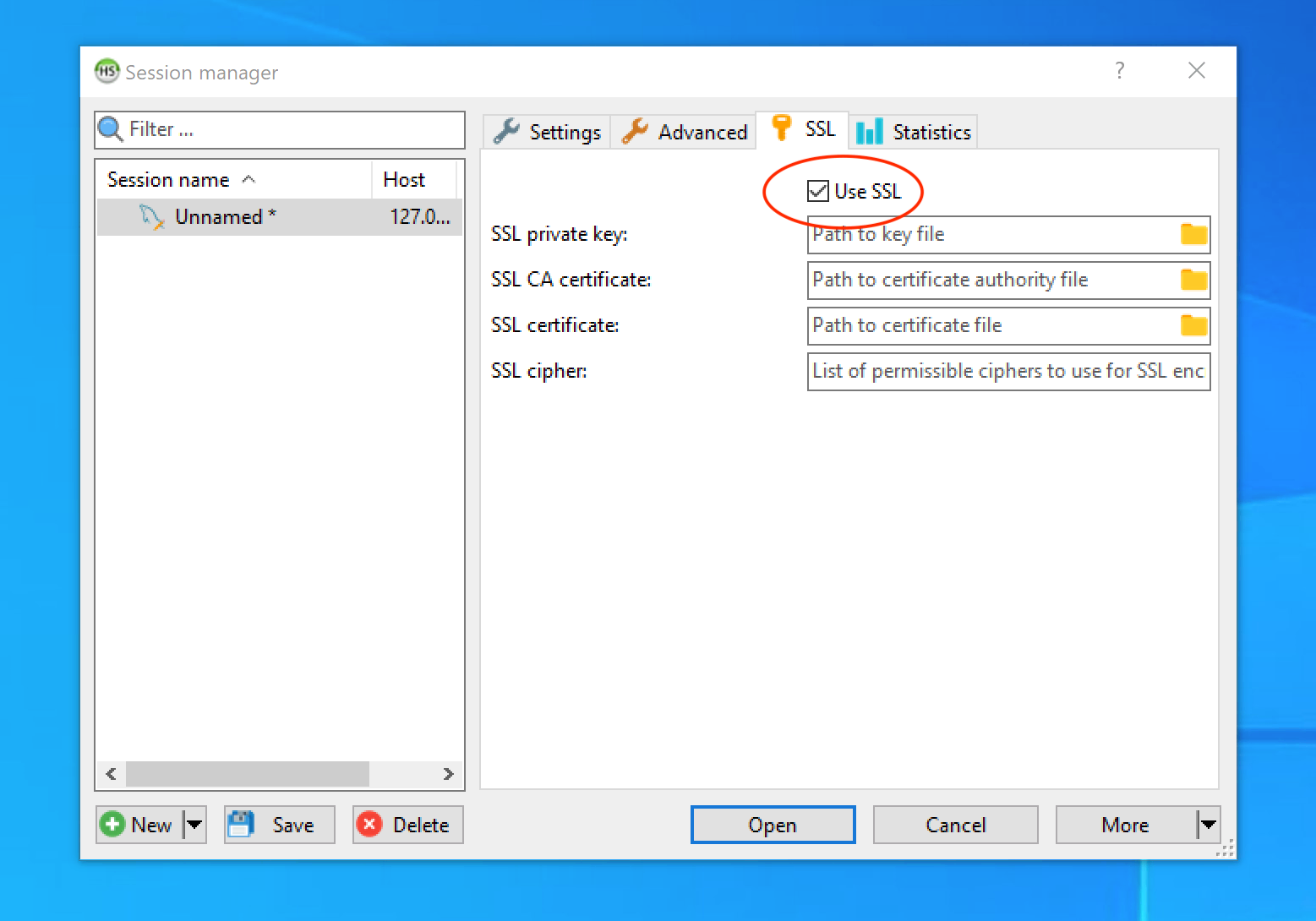 SSL/TLS encryption setup in HeidiSQL
Connecting Sequel Pro to MariaDB
Sequel Pro, last updated in 2016, is no longer maintained. Its outdated TLS support makes it incompatible with modern MariaDB and MySQL versions.
Alternative: Sequel Ace
To address the limitations of Sequel Pro, the community developed Sequel Ace, which is actively maintained. You can download it from the Apple App Store or its official website.
Connecting Sequel Ace to MariaDB
To connect MariaDB using Sequel Ace:
- Launch Sequel Ace and create a new connection.
- Input the following details:
- Host
- Username
- Password
- Port
- Select the
Require SSLcheckbox to enable secure connections.
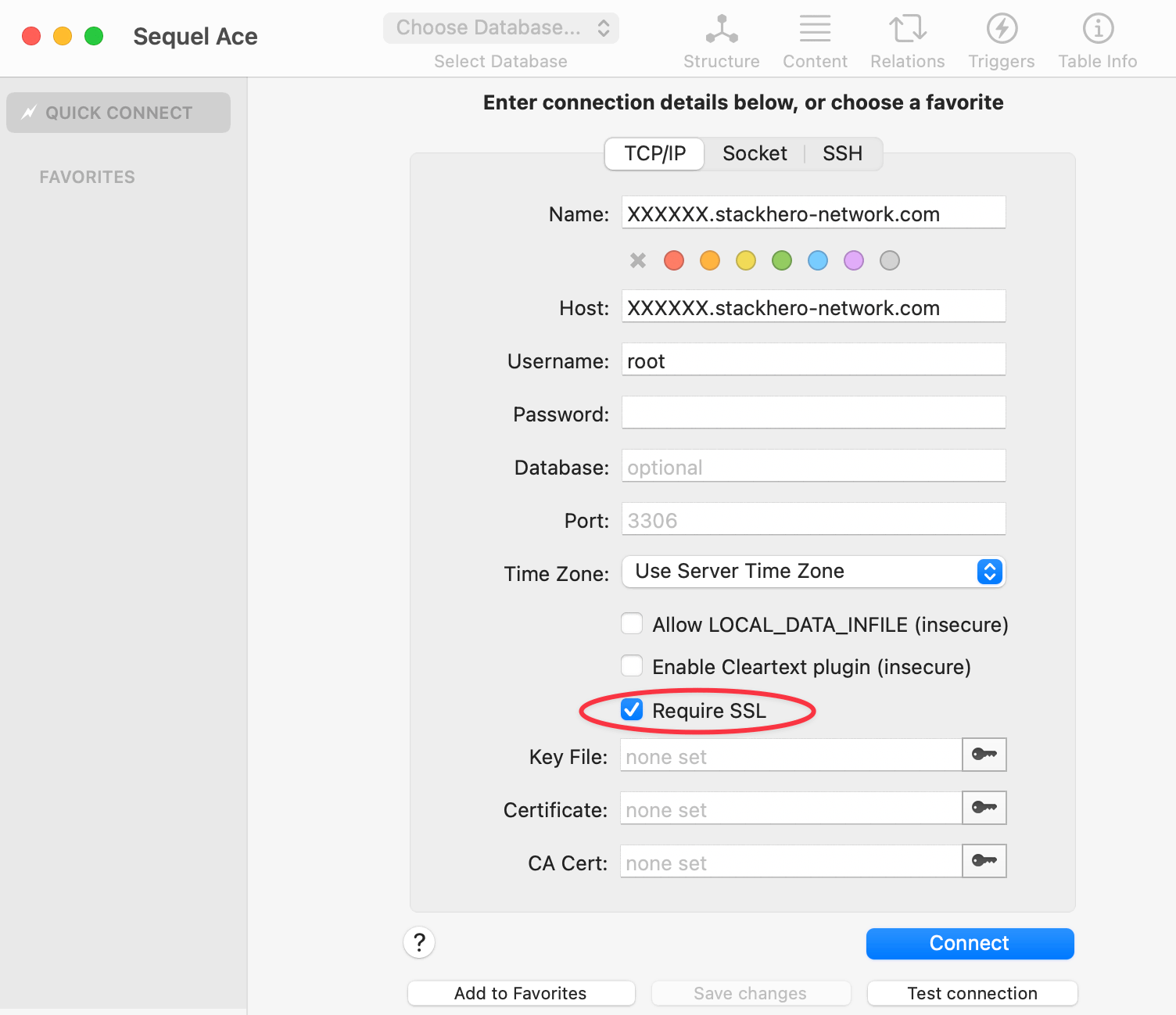 Example Sequel Ace configuration