Customise your service domain
How to set a custom domain for your service
By default, our managed services come with a unique domain name that follows the pattern <XXXXXX>.stackhero-network.com. You can customise this domain with your own domain or subdomain in just a few minutes.
Retrieve the configuration on Stackhero
In the Stackhero dashboard, select your service and click the "Configure" button. In the configuration panel, replace the default domain name with the new one you wish to use.
After you enter your custom domain name, the required DNS configuration details will be displayed.
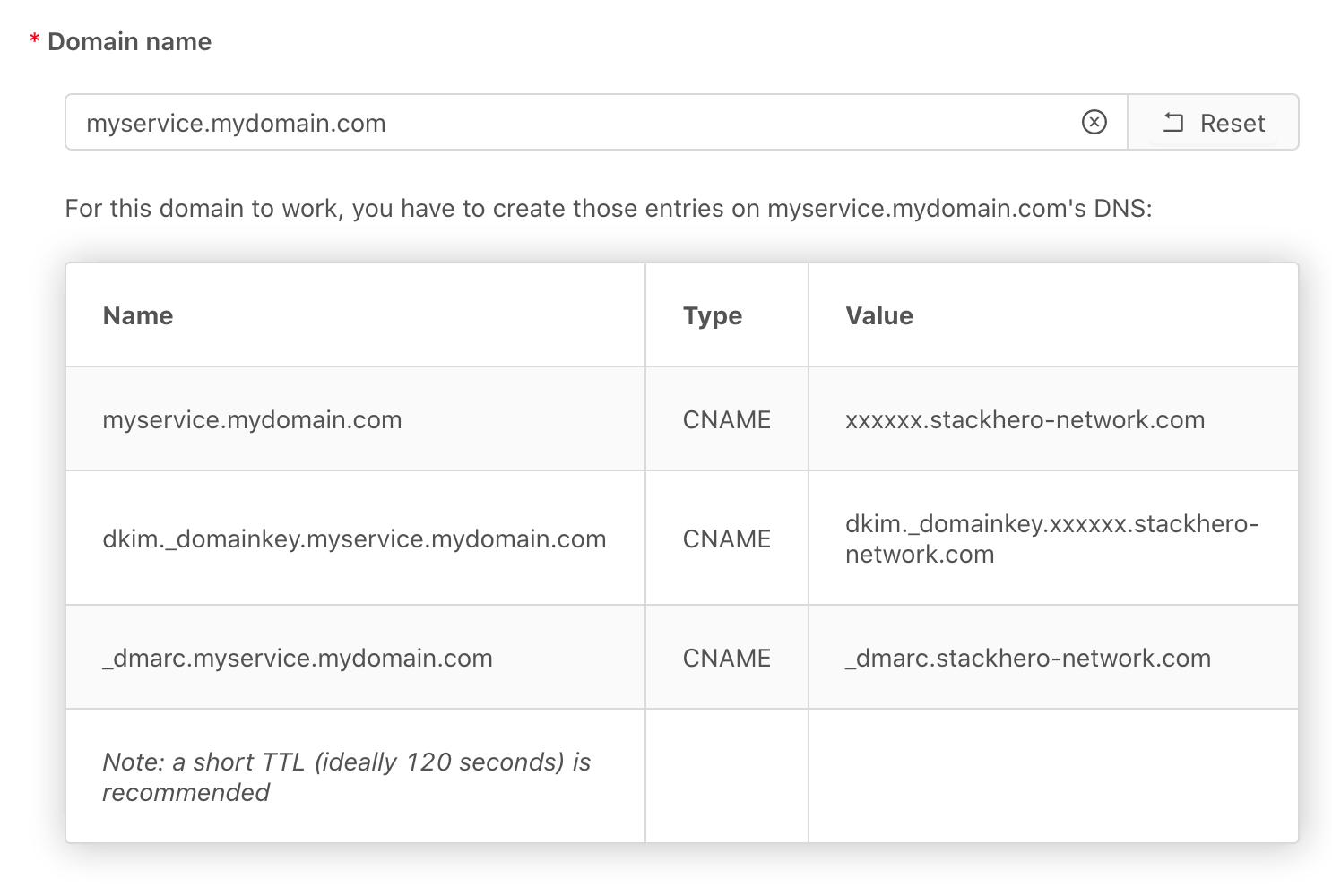 In this example, we own the domain mydomain.com and assign myservice.mydomain.com to this service.
Do not validate the configuration right now.
Configure your DNS
Connect to your DNS provider's dashboard (typically the company where you purchased your domain) and add the entries shown above. Depending on your service type, you might need to add one or several entries.
After updating the configuration on your DNS provider's side, allow a few minutes for the changes to apply. In many cases, the process takes only a few minutes, but some providers may require several hours.
Validate your configuration on Stackhero
Return to the Stackhero dashboard and validate the configuration using your new domain. This will update the settings and trigger our system to generate TLS certificates (SSL/HTTPS) for your service.
Note that the validity of your DNS entries will be checked when you validate your configuration. If any errors are found, the configuration will be rejected. In that case, carefully review your DNS settings, as mistakes are easy to make.
If your update continues to be rejected, it is possible that your DNS provider does not update its configuration instantly. In this case, please wait a few minutes and sometimes even hours (up to 24 hours) for the changes to be fully applied. Once the updates have propagated, you should be able to validate the configuration on Stackhero.
Use Cloudflare as a proxy
Cloudflare's proxy service can be used in front of any Stackhero service. There is a small trick to get it working:
- Create the required DNS entries in the Cloudflare dashboard with the proxy option disabled.
- Validate the configuration on Stackhero.
- Return to the Cloudflare dashboard and enable the proxy option for all the DNS entries you recently created.
Some services use WebSockets and gRPC connections. Cloudflare's proxy supports these protocols, but you must enable them in the configuration. In the Cloudflare dashboard, navigate to
Networkand activate the options for bothgRPCandWebSockets.