 Docker: HTTPS Routing
How to manage HTTP routing and TLS encryption (HTTPS) in your Docker containers
👋 Welcome to the Stackhero documentation!
Stackhero offers a ready-to-use Docker cloud CaaS (Containers as a Service) solution that provides a host of benefits, including:
- Easily deploy your containers to production with just a
docker-compose up.- Customizable domain name secured with HTTPS (for example, https://api.your-company.com, https://www.your-company.com, https://backoffice.your-company.com).
- Optimal performance and robust security powered by a private and dedicated VM.
- Effortless updates with just a click.
Save time and simplify your life: it only takes 5 minutes to try Stackhero's Docker CaaS cloud hosting solution and deploy your containers to production!
Each Stackhero for Docker instance includes a dedicated, pre-configured Traefik server that manages HTTP traffic and automatically encrypts it using TLS certificates. This streamlined setup makes routing simple and efficient. For example:
- Send traffic from
https://www.my-company.com(with or without the www prefix) to yourfrontendcontainer. - Route
https://www.my-company.com/documentationsto yourdocumentationscontainer. - Direct
https://api.my-project.ioto yourapicontainer.
You can manage an unlimited number of domains with automatic TLS certificate creation and renewal. Best of all, you can configure all of this with just three lines!
Traefik Base Configuration
In all the following configuration examples, you will have to replace
<XXXXXX>.stackhero-network.comwith your Stackhero for Docker instance domain name.
Below is a basic example of a docker-compose.yml file:
services:
  test:
    image: nginx
    labels:
      - "traefik.enable=true" # Enable Traefik to route traffic to this container
      - "traefik.http.routers.test.rule=Host(`<XXXXXX>.stackhero-network.com`)" # Define the host
      - "traefik.http.routers.test.tls.certresolver=letsencrypt" # Use 'letsencrypt' as the TLS certificate resolver
In this example, a container named test runs using the Nginx image. The key configuration is provided in the labels section. You simply need to copy these lines into your docker-compose.yml file and replace <XXXXXX>.stackhero-network.com with your service domain.
You can deploy the container using:
docker context use <XXXXXX>.stackhero-network.com
docker-compose up
After the container starts, visit https://<XXXXXX>.stackhero-network.com/ to see the "Welcome to nginx!" page.
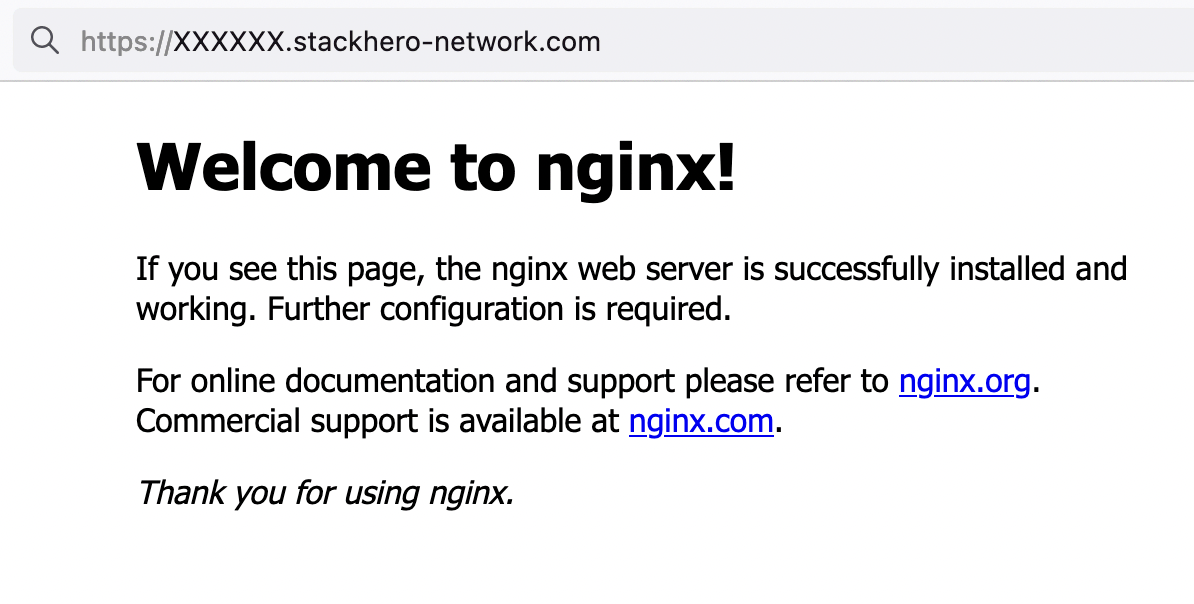 Nginx welcome page
If you do not see the Nginx welcome page, check the Traefik dashboard for possible errors!
With this configuration, HTTP requests sent to <XXXXXX>.stackhero-network.com are routed to your test container and Traefik automatically creates and manages TLS certificates for HTTPS.
Handle Custom Domains with Traefik
In the previous example, we used the default <XXXXXX>.stackhero-network.com domain. In practice, you will likely use your own company or project domains, such as www.my-company.com or api.my-project.io. The section below explains how to configure custom domains.
Configure Your First Domain with Traefik
In this example, you will configure the domain api.my-project.io. Replace my-project.io with a domain that you own and api with your desired subdomain.
First, update your domain DNS settings so that api.my-project.io points to your <XXXXXX>.stackhero-network.com domain.
- Log in to your domain provider and access your DNS configuration.
- Create a new entry named
api(or another subdomain of your choice), set its type toCNAMEand set its destination to<XXXXXX>.stackhero-network.com.
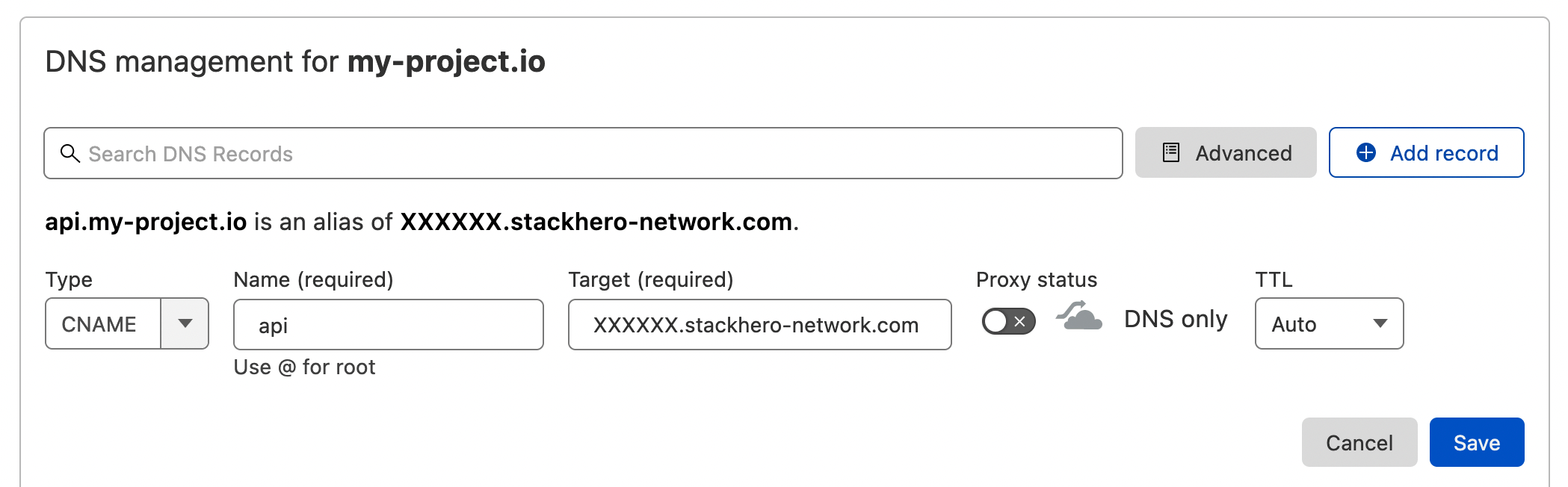 Example of DNS configuration on Cloudflare DNS interface
Once the DNS is configured, you can validate it by running:
host api.my-project.io
You should see a response similar to:
api.my-project.io is an alias for <XXXXXX>.stackhero-network.com
DNS propagation can take up to 24 hours depending on your provider. If the
hostcommand does not return the expected reply, please wait and try again later.
Next, update your docker-compose.yml file with the following configuration:
services:
  api:
    image: traefik/whoami
    hostname: api
    labels:
      - "traefik.enable=true"
      - "traefik.http.routers.api.rule=Host(`api.my-project.io`)" # Add your domain here
      - "traefik.http.services.api.loadbalancer.server.port=<PORT>" # Replace "<PORT>" with the port your API is listening on
      - "traefik.http.routers.api.tls.certresolver=letsencrypt"
Do not forget to replace
api.my-project.iowith your actual domain in the Traefik labelHost.
Deploy your container with:
docker-compose up -d
Then visit https://api.my-project.io. You should see a text page displaying your container hostname api.
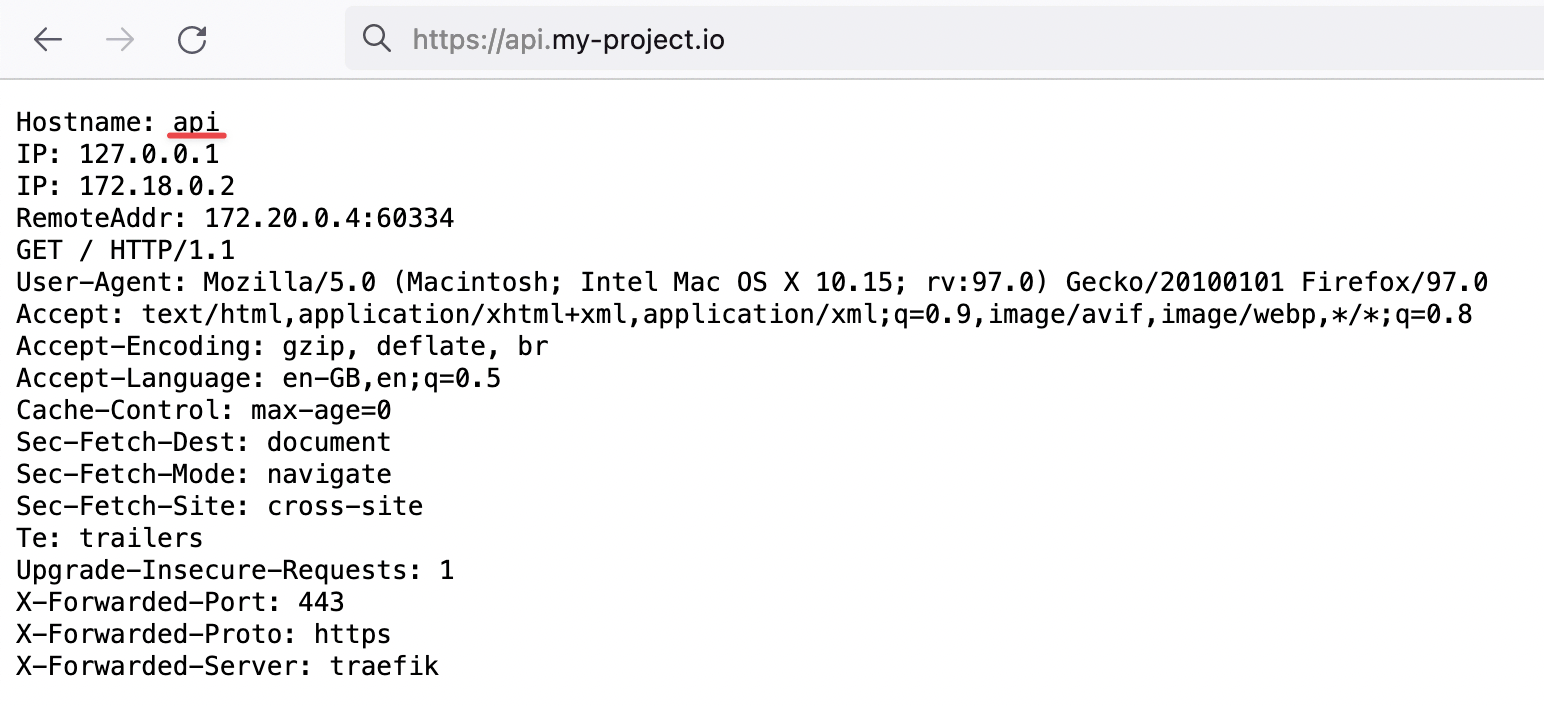 Proof that Traefik is handling our HTTP traffic with TLS encryption for our new domain
On the first container creation, TLS certificates may take a few seconds to generate. If you encounter a TLS error, wait a few seconds and refresh the page to allow time for the certificates to be generated.
Congratulations, you have now configured your first custom domain!
How to Redirect a "www" Subdomain to Your Root Domain Using Traefik
When defining a website URL such as my-company.com, it is a good idea to set up a "www" subdomain as well. This ensures that users who connect via www.my-company.com are redirected to your main site and helps avoid duplicate content issues.
In the example below, both my-company.com and www.my-company.com are handled. Users accessing www.my-company.com are redirected to my-company.com:
services:
  frontend:
    image: traefik/whoami
    hostname: frontend
    labels:
      - "traefik.enable=true"
      - "traefik.http.routers.frontend.rule=Host(`my-company.com`) || Host(`www.my-company.com`)" # Add both domains here
      - "traefik.http.services.frontend.loadbalancer.server.port=<PORT>" # Replace "<PORT>" with the port your frontend is listening on
      - "traefik.http.routers.frontend.tls.certresolver=letsencrypt"

      # Redirect 'www.my-company.com' to 'my-company.com':
      - 'traefik.http.routers.frontend.middlewares=redirect-www'
      - "traefik.http.middlewares.redirect-www.redirectregex.regex=^https://www.my-company.com/(.*)"
      - "traefik.http.middlewares.redirect-www.redirectregex.replacement=https://my-company.com/$${1}"
      - "traefik.http.middlewares.redirect-www.redirectregex.permanent=true"
Route a Path to a Specific Container with Traefik
Suppose you have a container dedicated to your documentation site. You might want to route https://my-company.com/docs to this container while sending other requests, such as https://my-company.com/, to your frontend container. The example below shows how this is accomplished:
services:
  documentations:
    image: traefik/whoami
    hostname: documentations
    labels:
      - "traefik.enable=true"
      - "traefik.http.routers.documentations.rule=Host(`my-company.com`) && PathPrefix(`/docs`)" # Define the path prefix here
      - "traefik.http.services.documentations.loadbalancer.server.port=<PORT>" # Replace "<PORT>" with the port your documentation container is listening on
      - "traefik.http.routers.documentations.tls.certresolver=letsencrypt"

  frontend:
    image: traefik/whoami
    hostname: frontend
    labels:
      - "traefik.enable=true"
      - "traefik.http.routers.frontend.rule=Host(`my-company.com`) || Host(`www.my-company.com`)"
      - "traefik.http.services.frontend.loadbalancer.server.port=<PORT>" # Replace "<PORT>" with the port your frontend is listening on
      - "traefik.http.routers.frontend.tls.certresolver=letsencrypt"

      # Redirect 'www.my-company.com' to 'my-company.com':
      - 'traefik.http.routers.frontend.middlewares=redirect-www'
      - "traefik.http.middlewares.redirect-www.redirectregex.regex=^https://www.my-company.com/(.*)"
      - "traefik.http.middlewares.redirect-www.redirectregex.replacement=https://my-company.com/$${1}"
      - "traefik.http.middlewares.redirect-www.redirectregex.permanent=true"
Now, visiting https://my-company.com/docs (or any subpath such as https://my-company.com/docs/something) will display content from the documentations container. Other paths, for example https://my-company.com/help, will be served by the frontend container.
Define a Custom Container Port in Traefik
By default, Traefik connects to the first exposed port of the container. In some cases, you might need to specify a particular port. The example below demonstrates how to define a custom port:
services:
  frontend:
    image: traefik/whoami
    hostname: frontend
    labels:
      - "traefik.enable=true"
      - "traefik.http.routers.frontend.rule=Host(`my-company.com`)"
      - "traefik.http.routers.frontend.tls.certresolver=letsencrypt"

      # Route traffic from 'https://my-company.com' to the 'frontend' container on port 80
      - "traefik.http.services.frontend.loadbalancer.server.port=80"
Traefik and Docker Compose Naming Good Practices
When defining a container in your docker-compose.yml file, a few fields are important for better consistency and ease of management. Consider using the following recommended configuration:
services:
  <CONTAINER_NAME>:
    image: traefik/whoami
    hostname: <CONTAINER_NAME>
    container_name: <CONTAINER_NAME>
    restart: unless-stopped
    labels:
      - "traefik.enable=true"
      - "traefik.http.routers.<CONTAINER_NAME>.rule=Host(`my-company.com`)"
      - "traefik.http.routers.<CONTAINER_NAME>.tls.certresolver=letsencrypt"
Simply replace <CONTAINER_NAME> with the desired name for your container, for example frontend.
Let's Encrypt Error "Domain Name Contains an Invalid Character"
When creating a subdomain, Let's Encrypt follows RFC 952 and 1123, which allow only characters in the set [a-zA-Z0-9-].
Although underscores ('_') are permitted in DNS record names, they are not acceptable in hostnames. As a result, Let's Encrypt rejects subdomains such as "my_subdomain.example.com" and displays the error "Domain name contains an invalid character".
To resolve this issue, simply remove any underscores from your subdomains.