 PHP: Deploy with GitHub Actions
How to deploy your PHP code using GitHub Actions
👋 Welcome to the Stackhero documentation!
Stackhero offers a ready-to-use PHP cloud solution that provides a host of benefits, including:
- Deploy your application in seconds with a simple
git push.- Use your own domain name and benefit from the automatic configuration of HTTPS certificates for enhanced security.
- Enjoy peace of mind with automatic backups, one-click updates, and straightforward, transparent, and predictable pricing.
- Get optimal performance and robust security thanks to a private and dedicated VM.
Save time and simplify your life: it only takes 5 minutes to try Stackhero's PHP cloud hosting solution!
GitHub Actions makes it easy to automate tasks such as deploying your PHP code to production servers. In this guide, you will learn how to securely deploy your PHP application to both staging and production environments using GitHub Actions.
The approach involves maintaining two branches, staging and production. Code pushed to these branches is automatically deployed to the corresponding Stackhero instance.
Having a staging instance is not mandatory. However, using both staging and production instances is strongly recommended to ensure smooth deployments and increased confidence when deploying to production. This practice aligns with industry standards and helps prevent potential issues.
To follow this guide, you need a GitHub account hosting your PHP code repository.
Creating the PHP services
Begin by logging into your Stackhero dashboard and creating two PHP services: one for staging and one for production. To keep things organized, rename these services to "Production" and "Staging".
If you do not have a Stackhero account, you can create one for free in just two minutes and set up your PHP cloud services with a few clicks.
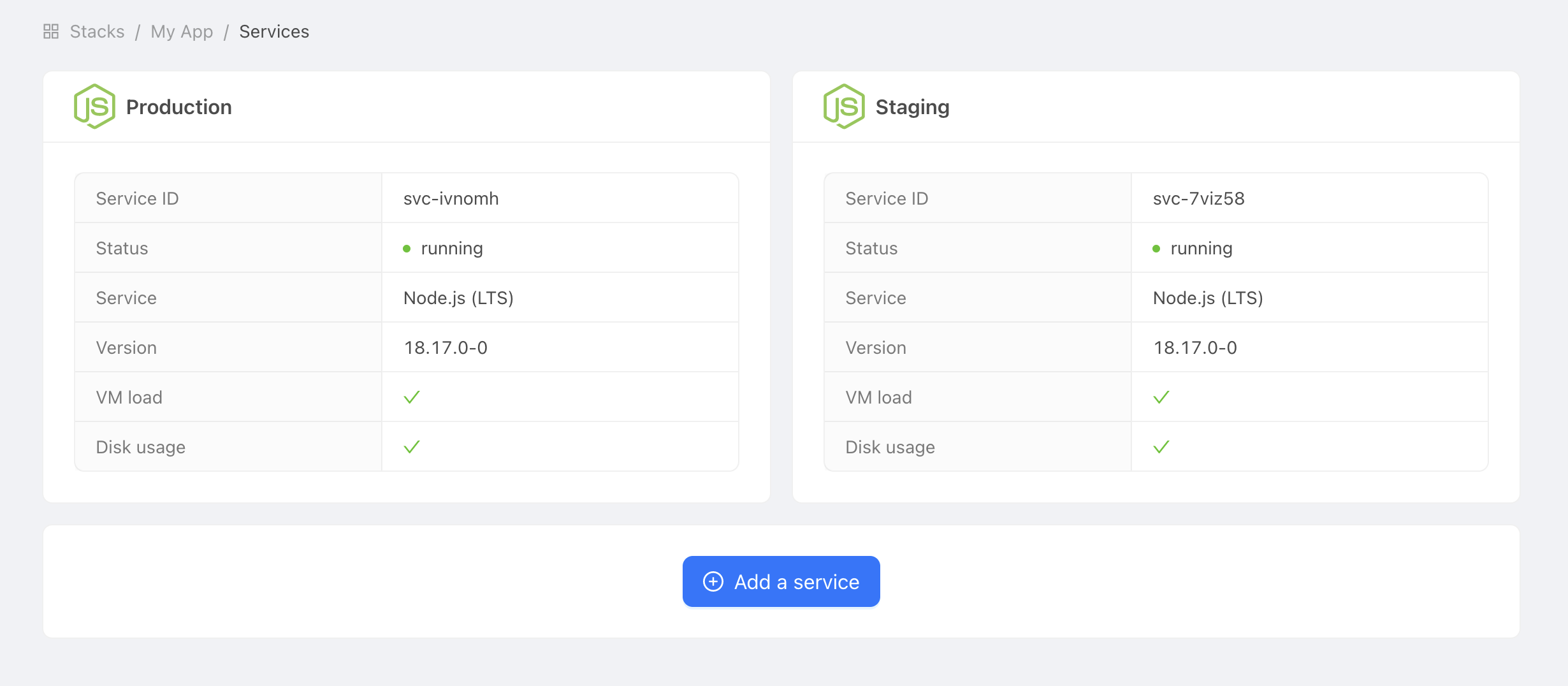 Example of production and staging services
Configure SSH keys
SSH keys are essential for allowing GitHub Actions to securely connect to your PHP service for deployment. In this guide, you will create a unique SSH key pair dedicated to this purpose.
Generate SSH keys
You can generate new SSH keys by running the following command on your computer:
ssh-keygen -C "" -f /tmp/ssh_key -N ""
Set the public key
Retrieve the public key by running:
cat /tmp/ssh_key.pub
Next, navigate to your Stackhero dashboard. Select your "Production" PHP service and click on "Configure". Then follow these steps:
- Under
SSH public keys, click on "Add a public key". - Set the
Descriptionto "GitHub Action". - Paste the retrieved public key into the
Keyfield.
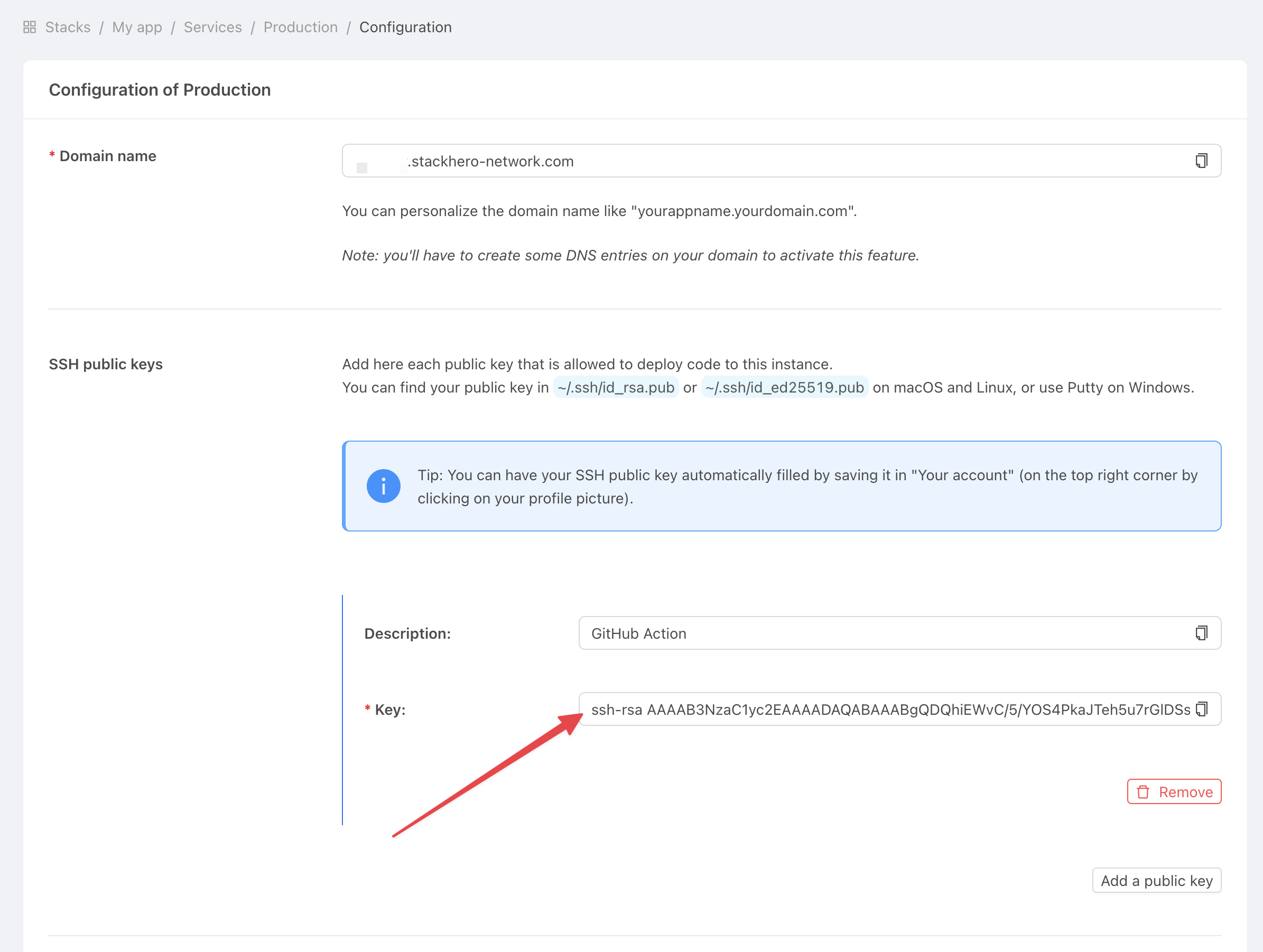 Get service settings
Set the private key
Now, open your GitHub project and follow these steps to configure the private key for deployment:
-
Click on
Settings, thenEnvironmentsand selectNew environment.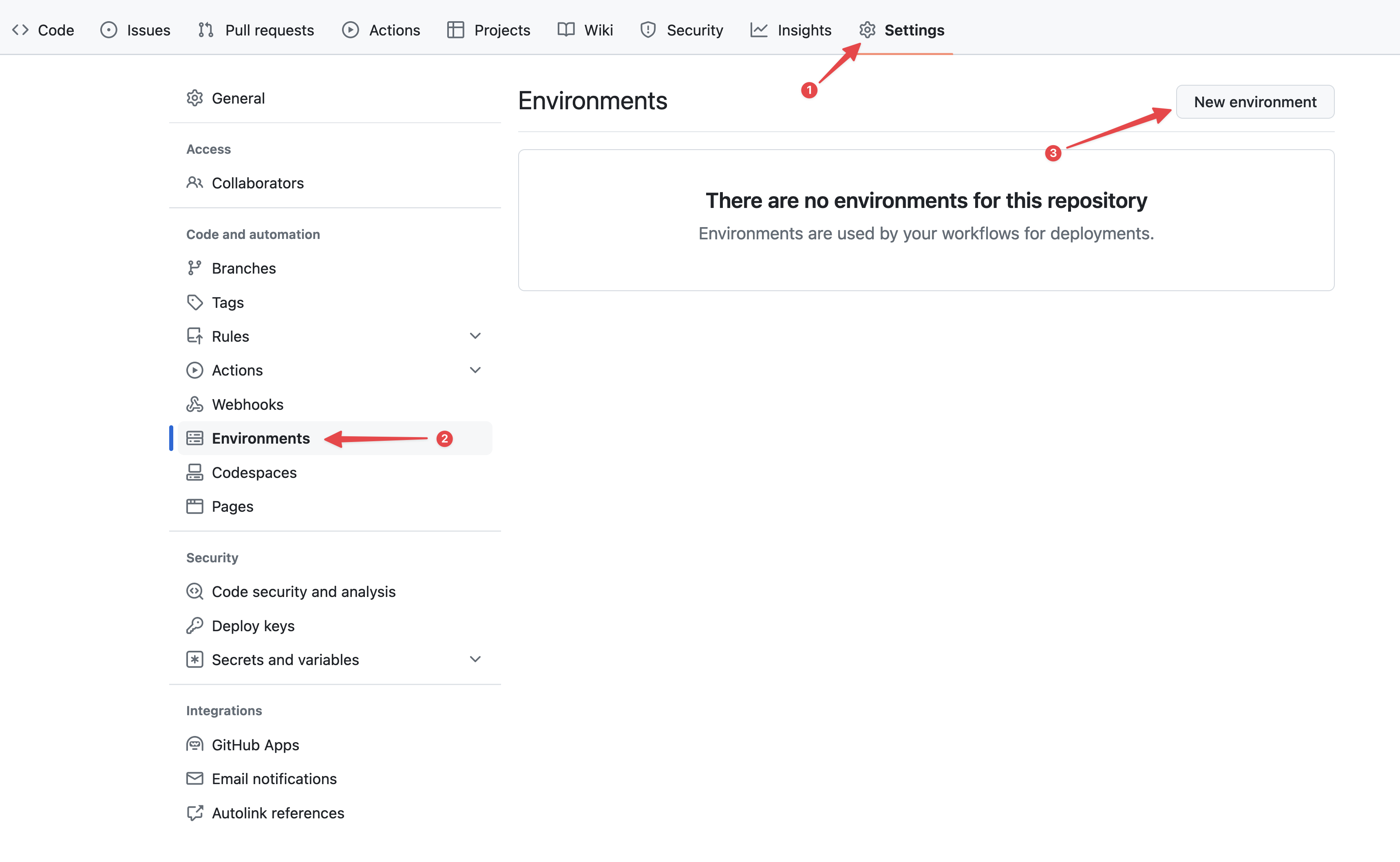 Configuring GitHub environments
 -
In the
Namefield, enter "production" and confirm.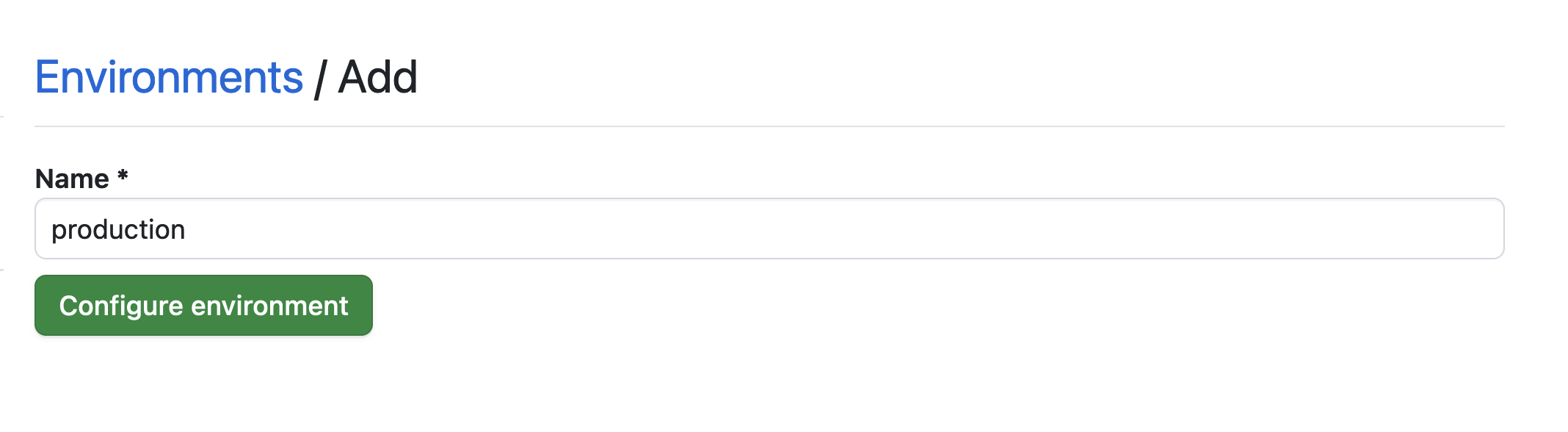 Setting the environment
 -
Click on the
No restrictionbutton and selectSelected branches and tags.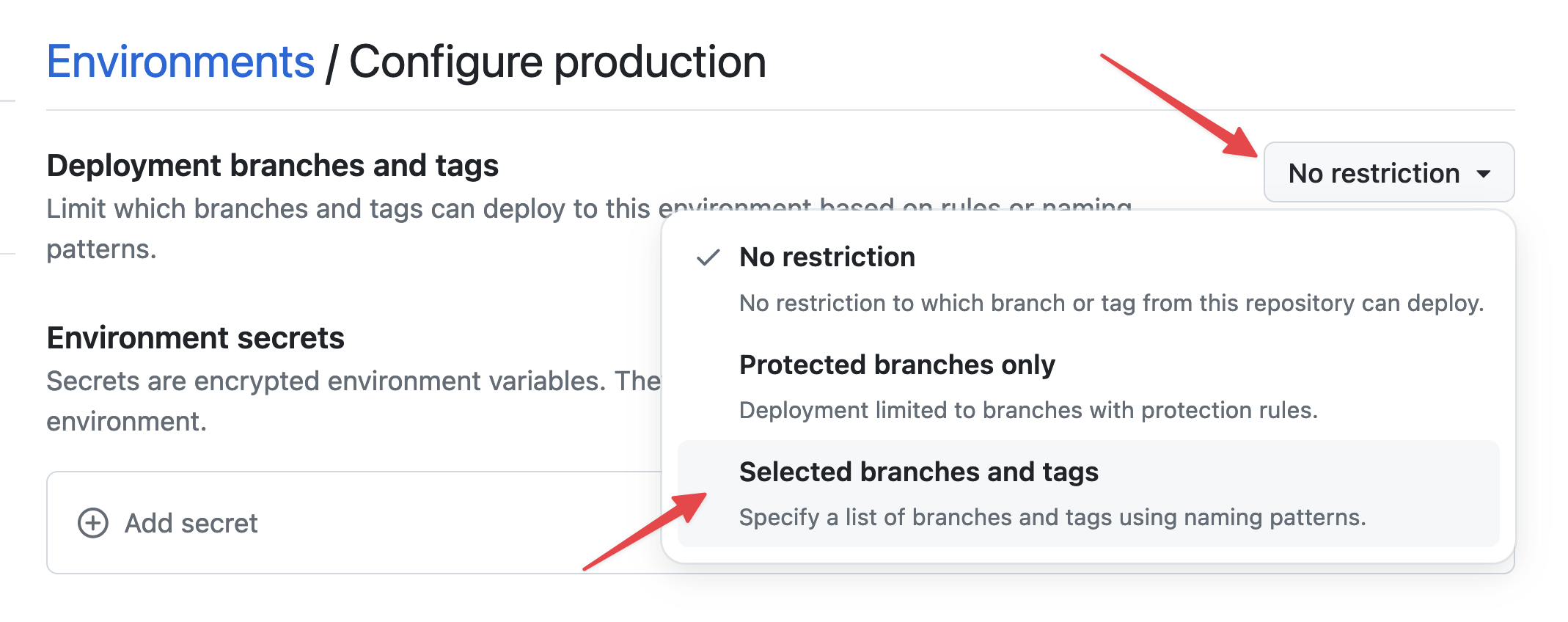 Setting environment restrictions
 -
Click on
Add deployment branch or tag rule, enter "production" in theName patternfield, and click onAdd rule.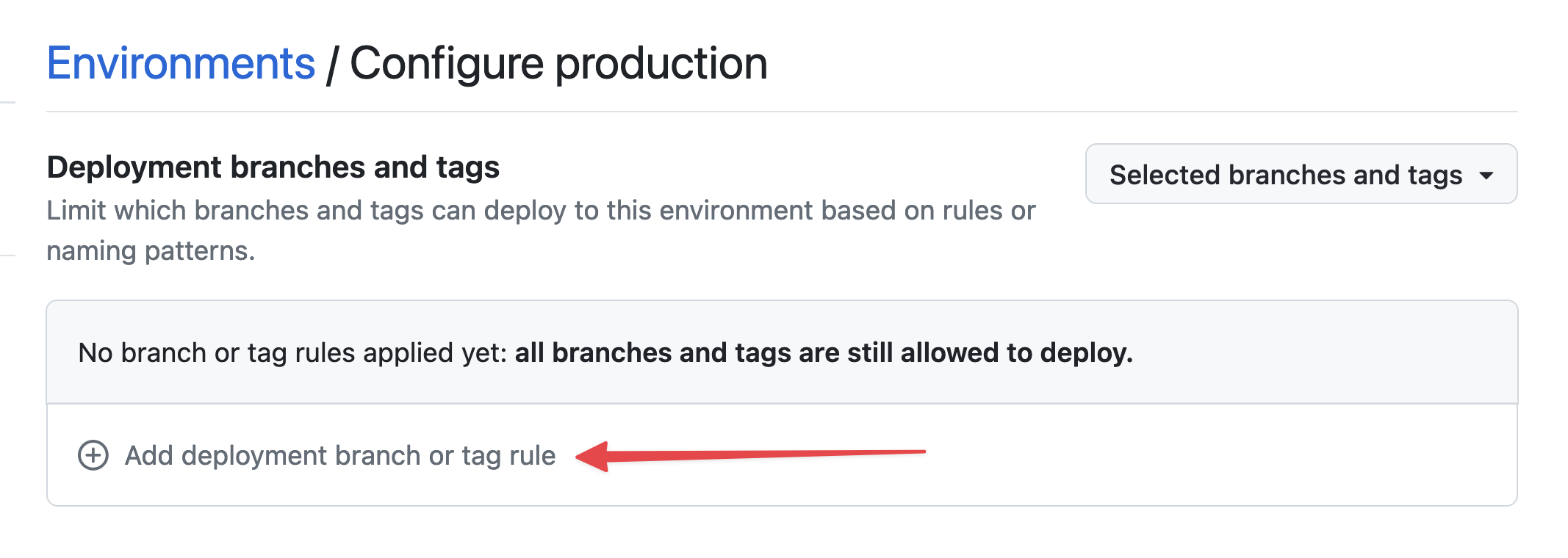 Setting environment branch
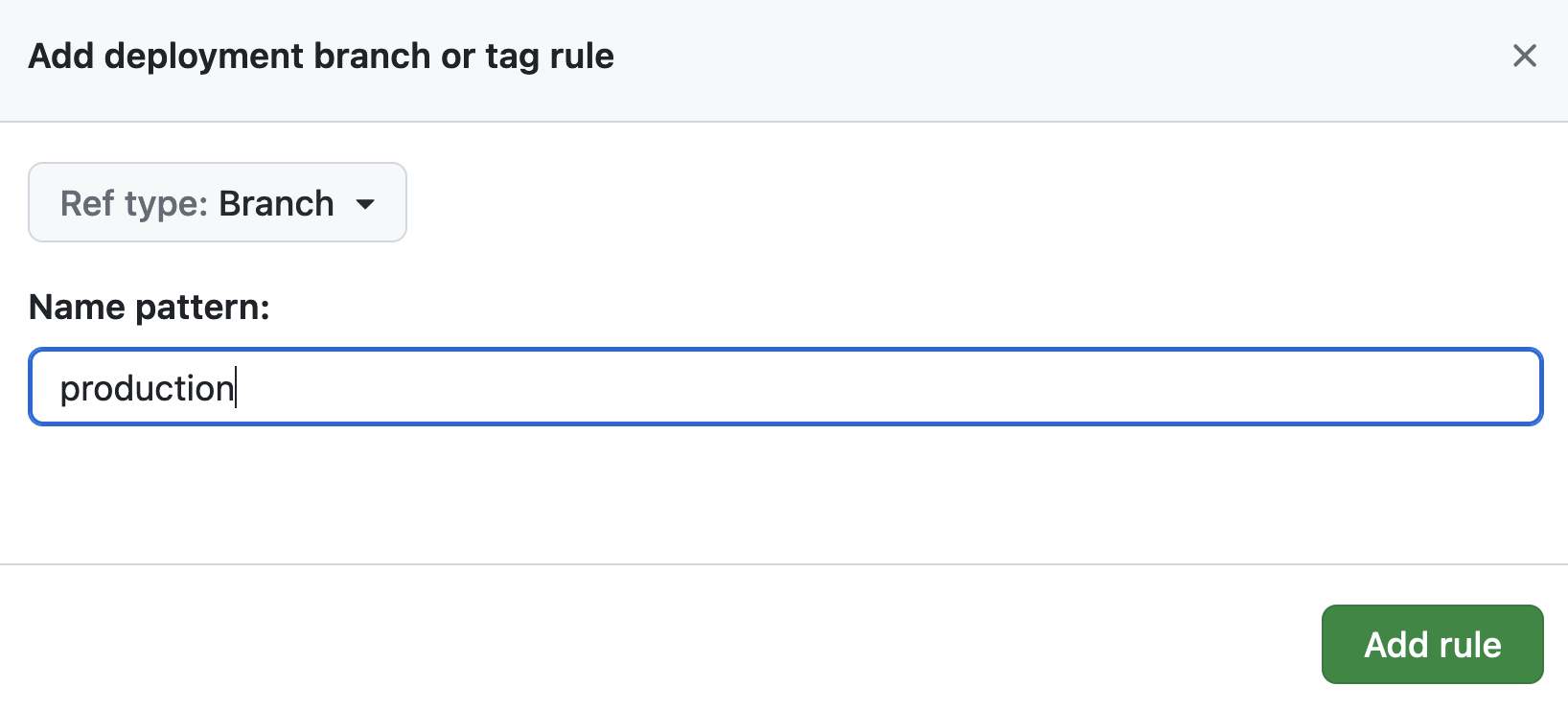 Setting environment branch
 -
Under
Environment secrets, click onAdd secret.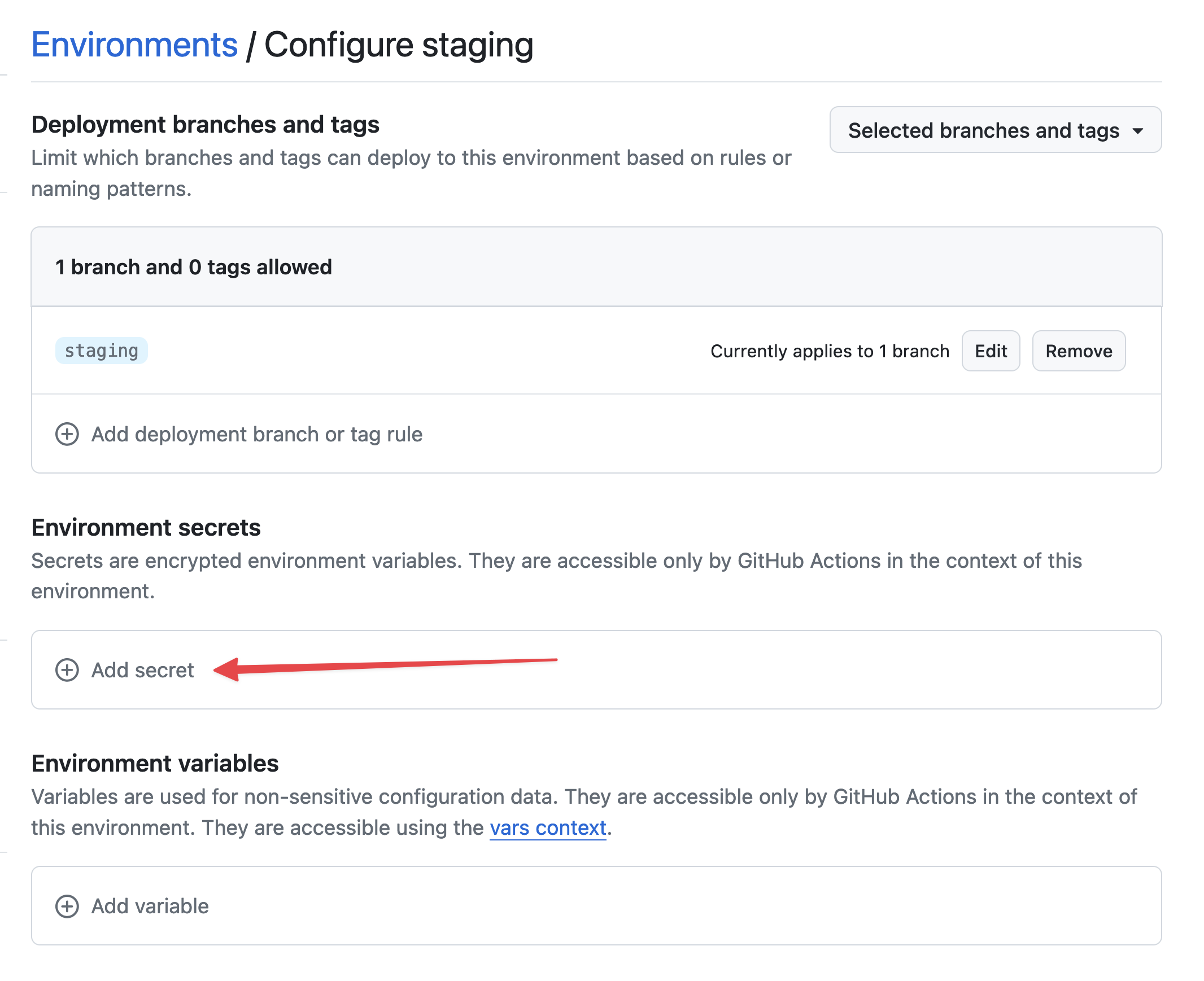 Add secret
Retrieve the private key you generated earlier by running:
cat /tmp/ssh_key
In the GitHub environment settings:
-
In
Name, enterSTACKHERO_SSH_PRIVATE_KEYand paste your private key into theValuefield.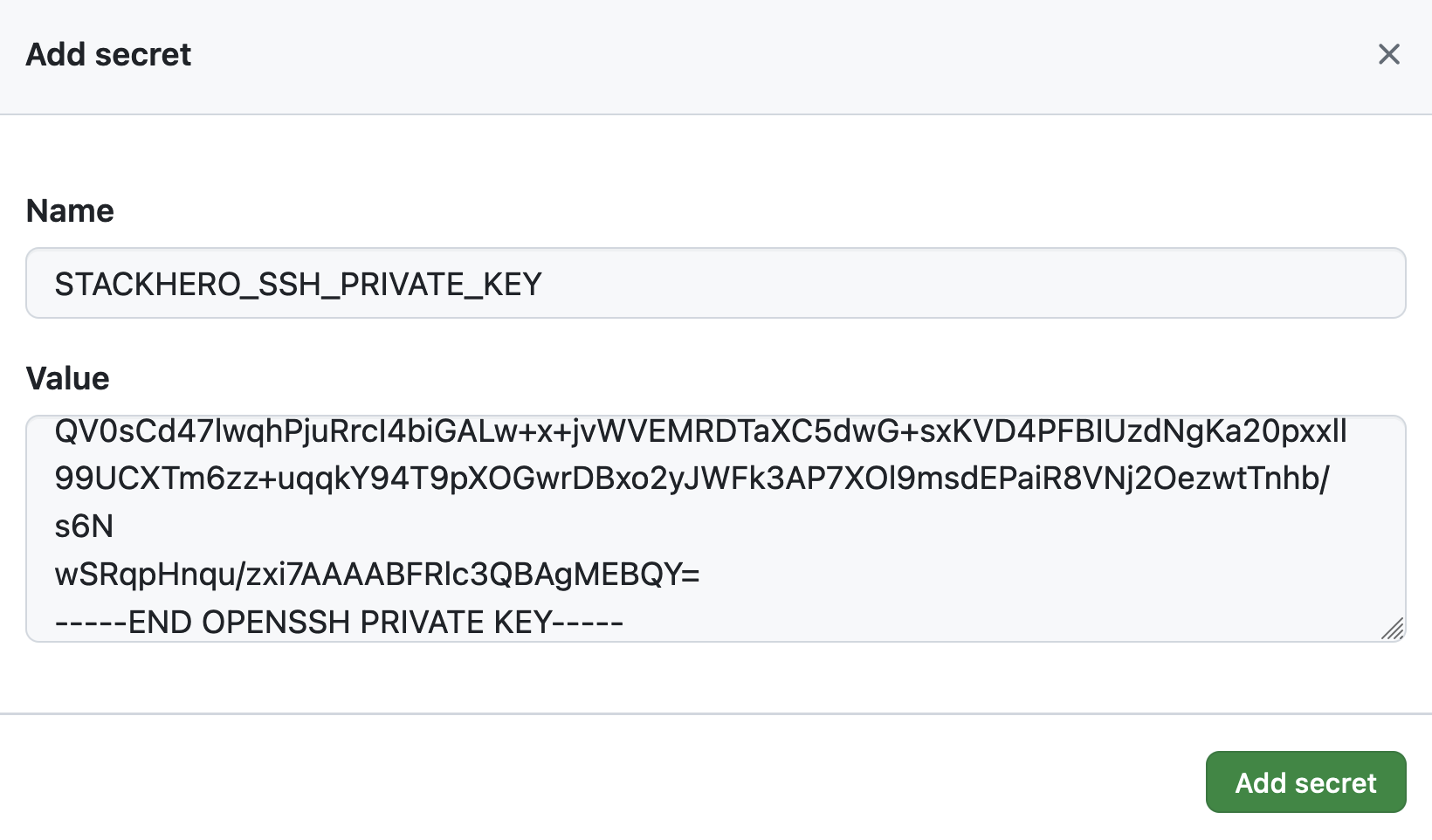 Setting the SSH private key secret
 -
In the
Environment variablessection, click onAdd variable.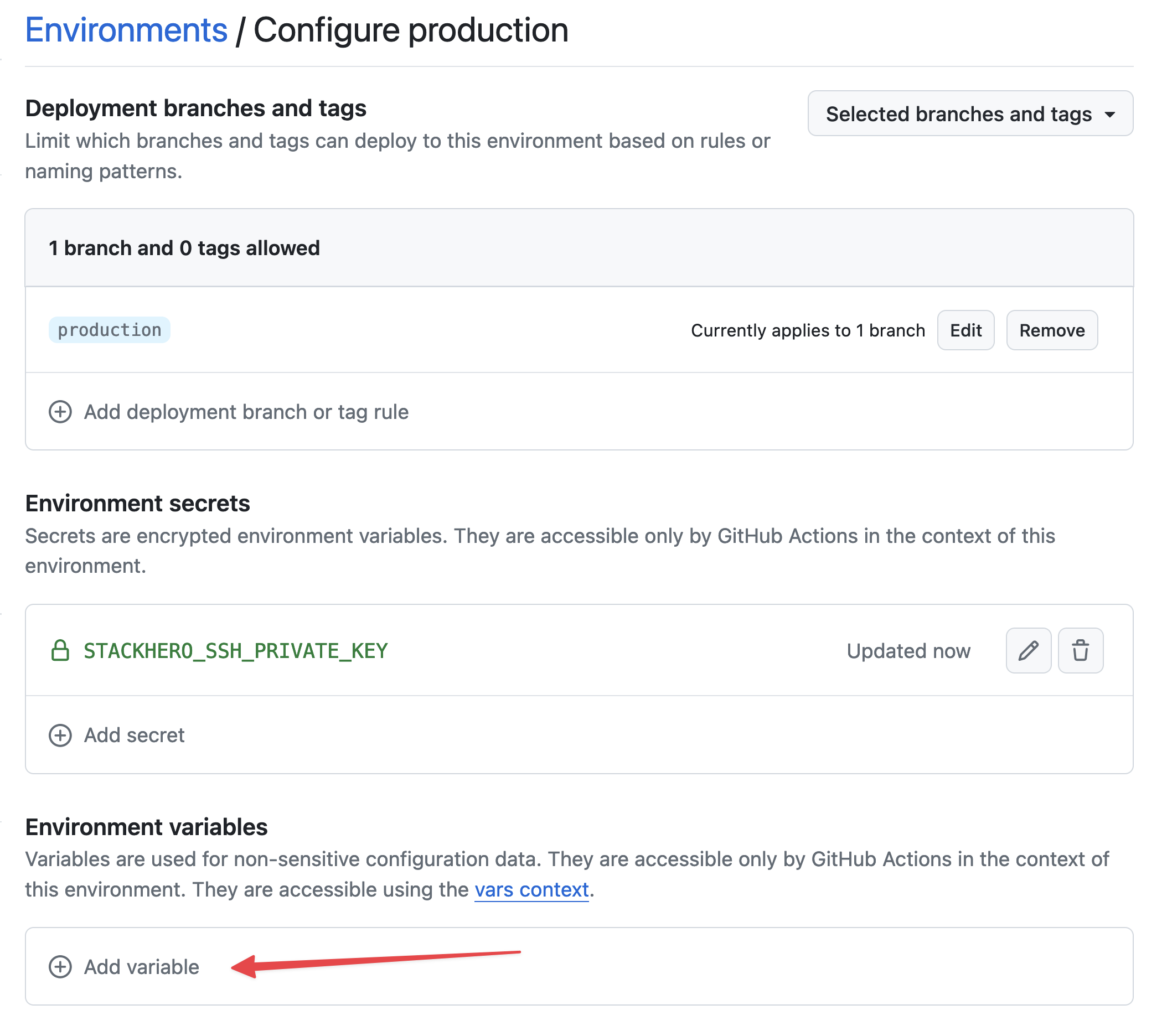 Setting variables
 -
In
Name, enterSTACKHERO_ENDPOINTand paste the PHP service endpoint into theValuefield. You can find this endpoint in your Stackhero dashboard.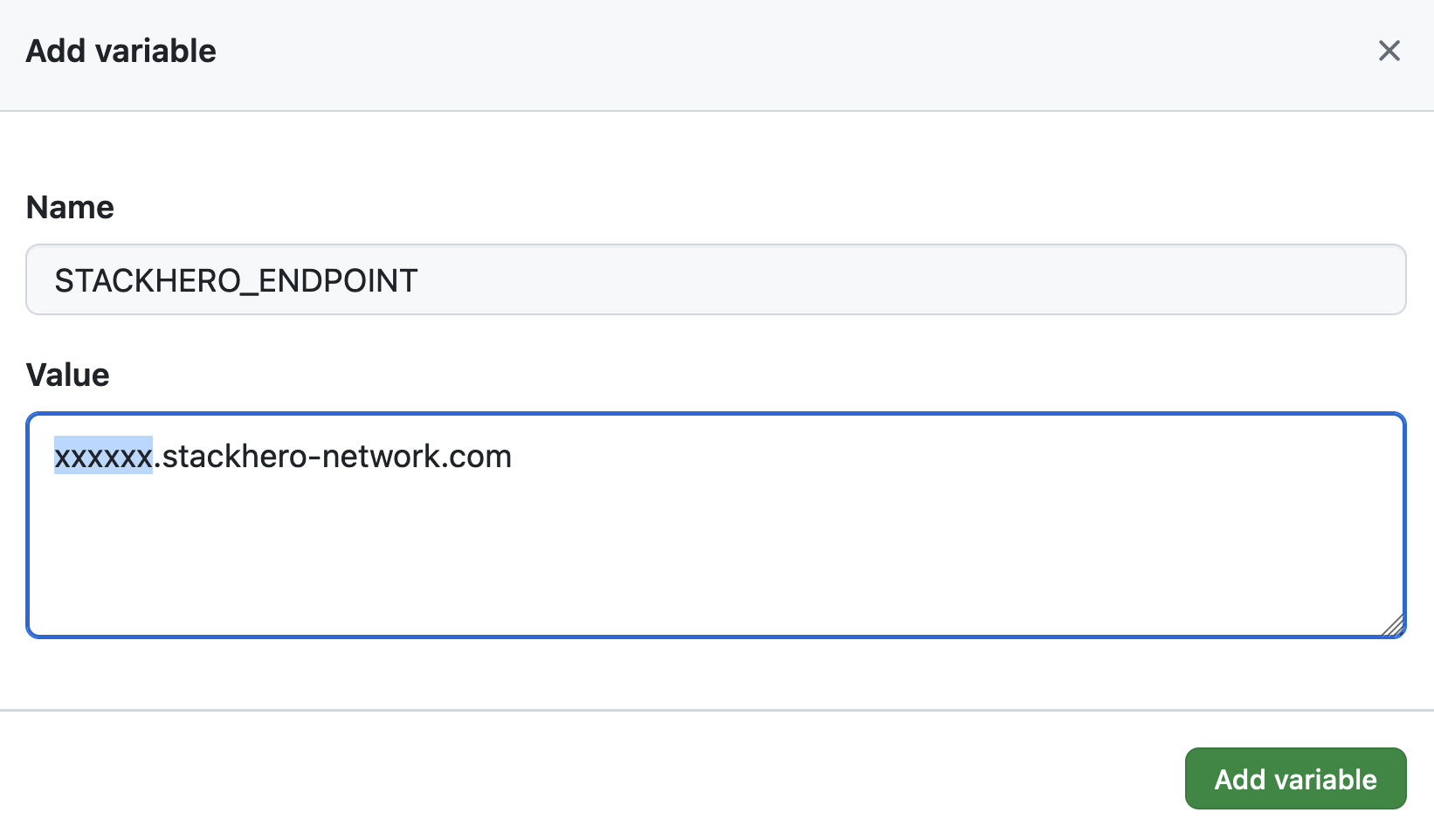 Setting the endpoint variable
If you have customized your service's domain name, use the customized version instead of xxxxxx.stackhero-network.com.
Delete the generated keys
For security reasons, you should now remove the generated SSH keys from your computer:
rm /tmp/ssh_key /tmp/ssh_key.pub
Configure the GitHub Actions workflow
Next, you will set up a GitHub Actions workflow to automate your deployments. In your Git repository, create a directory called .github/workflows and add a file named deploy-to-stackhero.yml with the following content:
# File: .github/workflows/deploy-to-stackhero.yml

name: Deploy to Stackhero
run-name: Deploy branch "${{ github.ref_name }}" to Stackhero

on:
  push:
    # List of branches that will trigger the deploy action following a git push
    # Do not forget to create a corresponding environment in GitHub (under "Settings" -> "Environments") for each branch
    # Then add the secret "STACKHERO_SSH_PRIVATE_KEY" and variable "STACKHERO_ENDPOINT" in that environment
    branches: [ "production", "staging" ]

jobs:
  Deploy:
    environment: ${{ github.ref_name }}
    runs-on: ubuntu-latest
    steps:
    - uses: stackhero-io/github-actions-deploy-to-stackhero@v1
      with:
        # The secret "STACKHERO_SSH_PRIVATE_KEY" and the variable "STACKHERO_ENDPOINT" should be defined in the corresponding GitHub environment (under "Settings" -> "Environments")
        ssh_private_key: ${{ secrets.STACKHERO_SSH_PRIVATE_KEY }}
        endpoint: ${{ vars.STACKHERO_ENDPOINT }}
After adding the file, commit your changes by running the following commands in your terminal:
git add -A .
git commit -m "Add GitHub Actions to deploy to Stackhero"
Then, create a production branch by running:
git checkout -b production
Finally, push your changes to GitHub:
git push --set-upstream origin production
This command pushes your code to the GitHub production branch. GitHub Actions then automatically runs and deploys your code to the associated Stackhero instance. To verify the deployment, visit your GitHub project and click on Actions.
 GitHub Actions that deployed to production
Congratulations, you are now set up to automatically deploy your code to production using GitHub Actions!
Creating the staging environment
You can set up the staging environment using a process similar to the production environment. Simply repeat the steps above, replacing production with staging where applicable.
Once the settings are configured, create a staging branch by running:
git checkout -b staging
Then, push your changes to GitHub:
git push --set-upstream origin staging
GitHub Actions automatically deploys the staging branch code to the PHP service designated for staging.
Going further
It is good practice to protect the production and staging branches to avoid direct pushes. You might consider creating a pull request for the staging branch that is reviewed and merged only by individuals with deployment rights. Once changes are validated in the staging environment, authorized users can merge the pull request into the production branch.
Following this approach increases security by ensuring that only approved changes are deployed and enhances reliability by testing new features in a staging environment before they reach production.