 Directus: External databases
How to connect Directus to a MySQL, MariaDB, or PostgreSQL database
👋 Welcome to the Stackhero documentation!
Stackhero offers a Directus cloud service, ready to use in production, in just 2 minutes:
- Unlimited collections, items, users, roles, API requests, and transfers
- Customizable domain name secured with HTTPS (for example, https://cms.your-company.com)
- Dedicated and unlimited email server included
- Redis cache server included for high performance
- Optimal performance and robust security powered by a private and dedicated VM.
- One-click updates for effortless maintenance
Save time and simplify your life: it only takes 5 minutes to try Stackhero's Directus cloud solution!
Directus instances on Stackhero come configured with a SQLite database by default. This makes it easy to get started, so you can explore the platform or run tests within minutes. However, for production environments a more robust external database is recommended.
Connecting Directus to a MySQL or MariaDB database
-
First, create a user for Directus on MySQL or MariaDB. Open phpMyAdmin and navigate to User accounts followed by Add user account.
-
Provide a username (for example,
directus). Set a secure password by clicking the Generate button, choose Native MySQL authentication, and check Create database with same name and grant all privileges.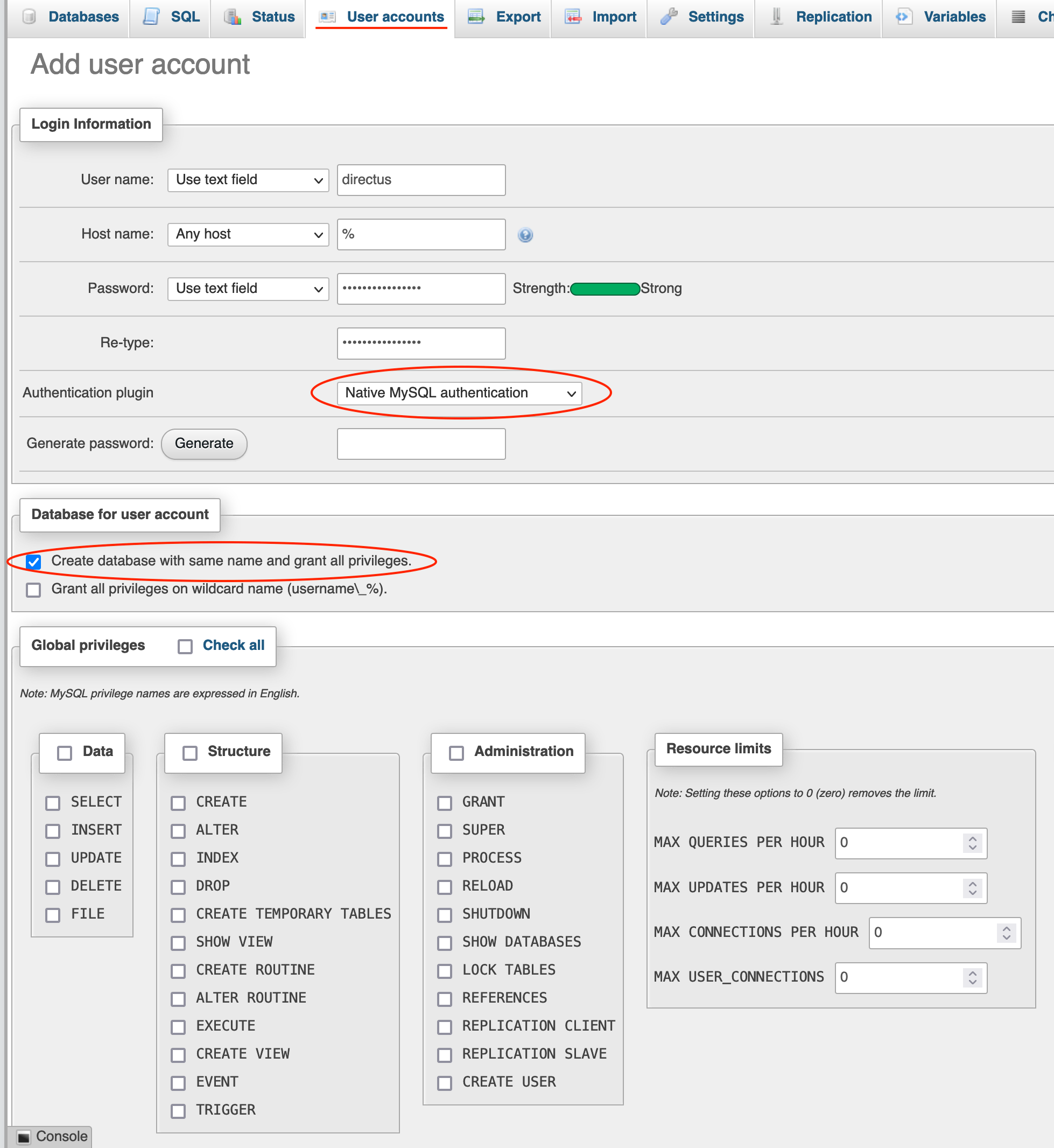 Directus user creation on a MySQL/MariaDB database
 -
Next, log in to your Stackhero dashboard. Select your Directus service and click Configure.
-
In the configuration panel under Database, choose MySQL/MariaDB and complete the remaining fields as shown in the screenshot below.
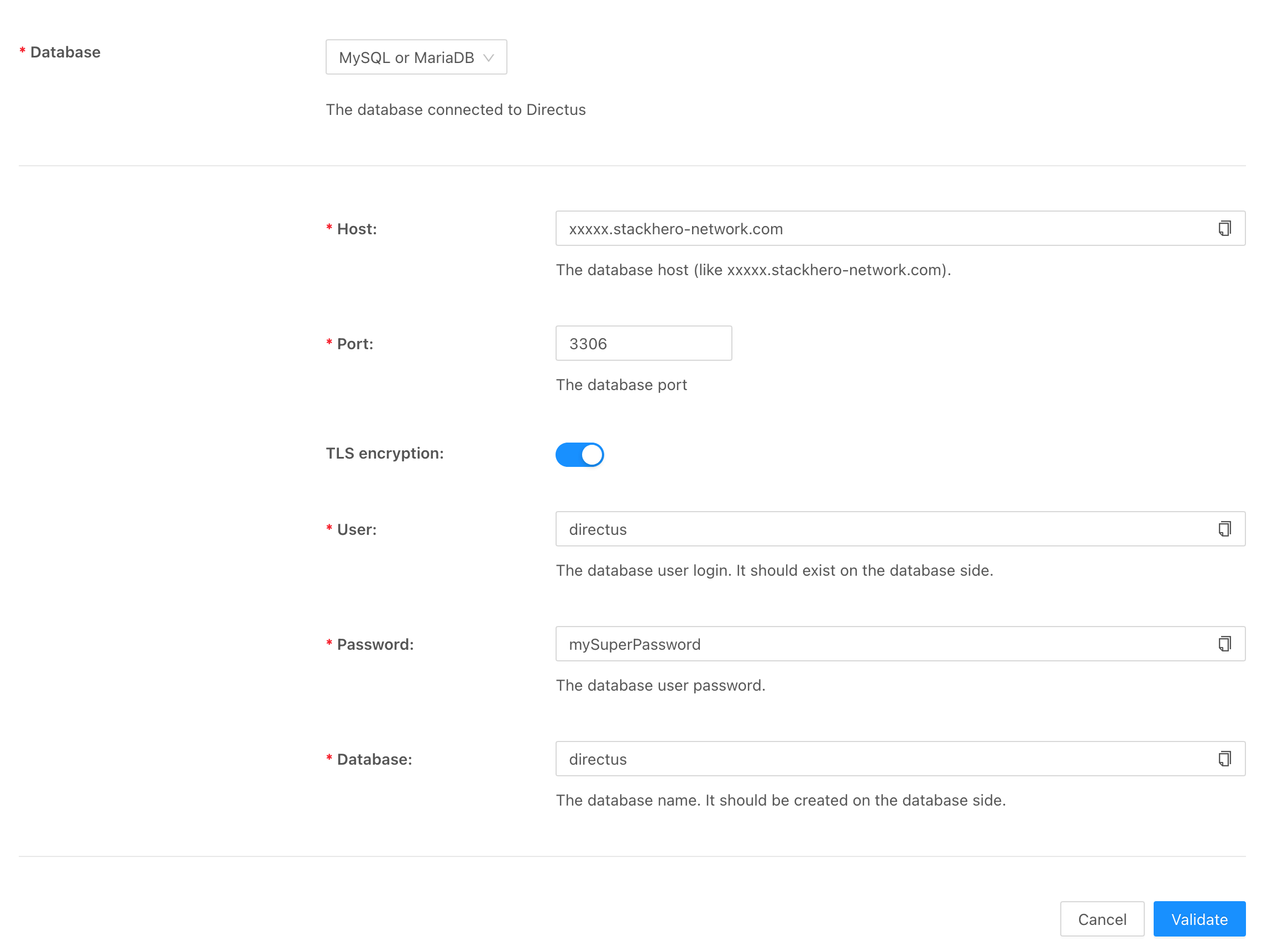 Configuration of MySQL/MariaDB for Directus
Connecting Directus to a PostgreSQL database
-
Start by creating a user for Directus on PostgreSQL. Open PgAdmin, expand servers > postgresql, right-click on Login/Group Roles, and select Create > Login/Group Role....
-
In the Name field, enter
directus. -
Switch to the Definition tab and set a strong, secure password.
-
Next, go to the Privileges tab, check Can login, and save the new user.
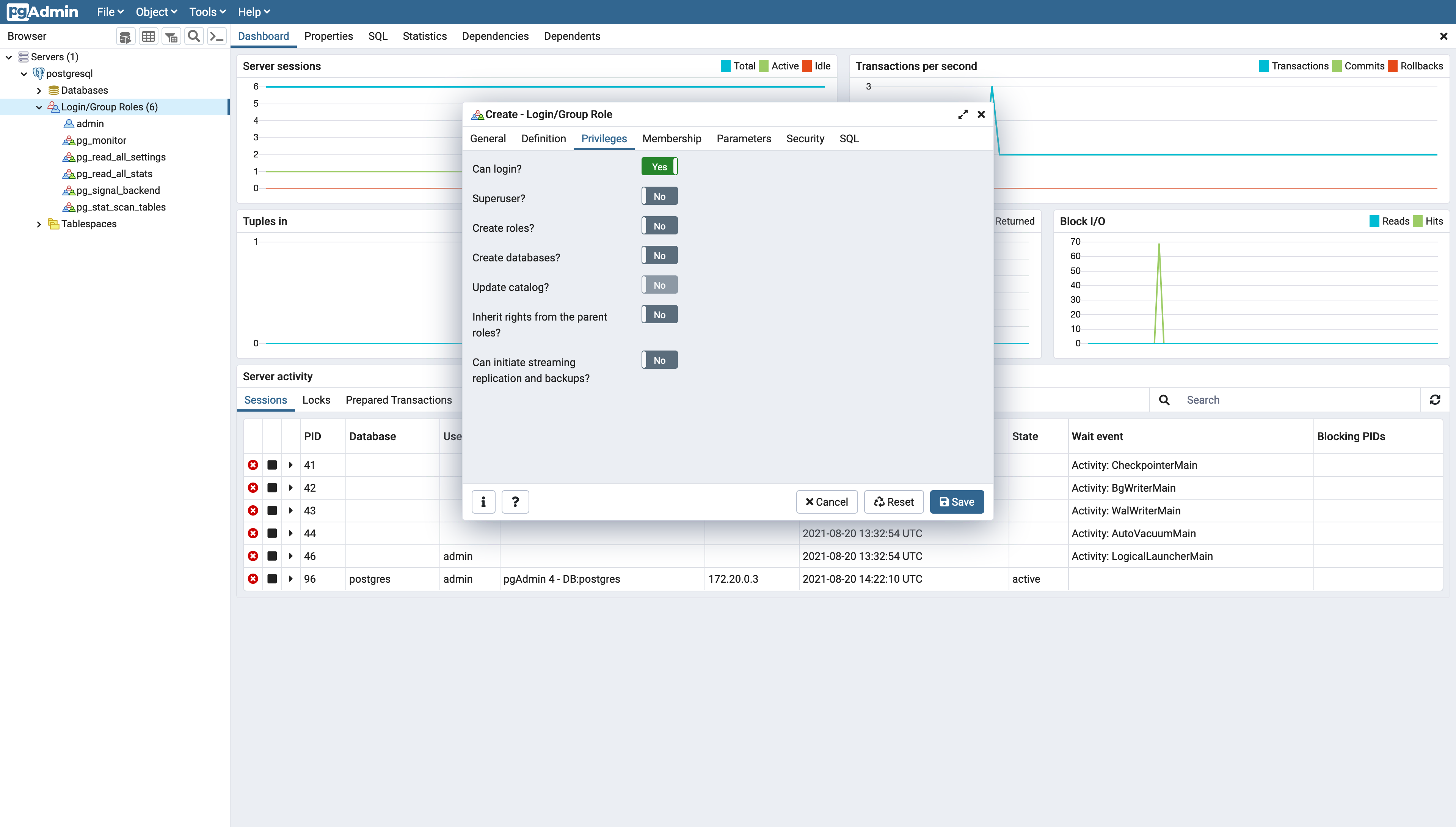 Directus user creation on a PostgreSQL database
 -
Now create a database for Directus. Right-click on Databases and choose Create > Database.
-
Enter
directusin the Database field, selectdirectusas the owner, and save your changes.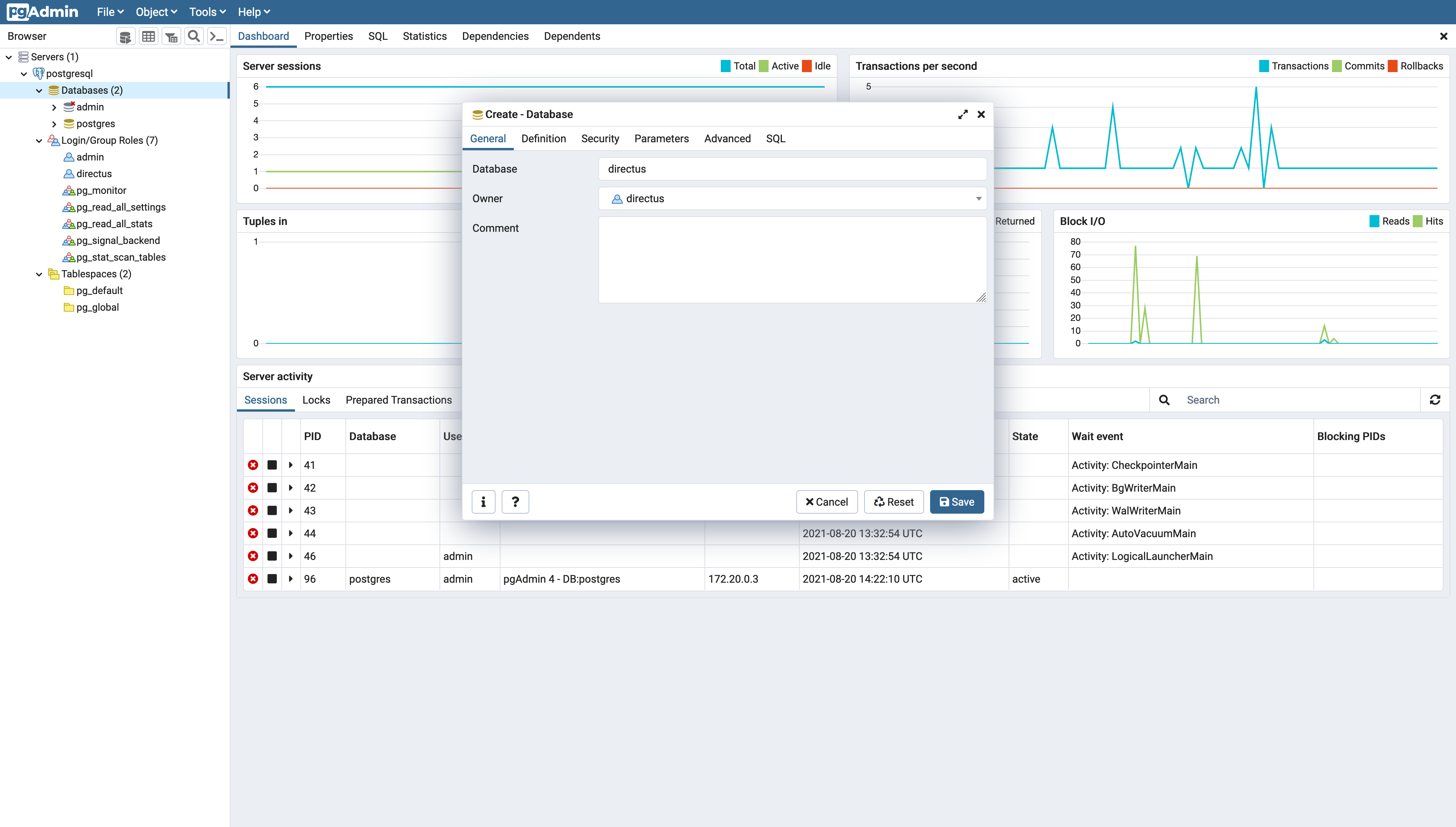 Directus database creation on PostgreSQL
 -
Finally, navigate to your Stackhero dashboard, select your Directus service, and click Configure.
-
Under Database, select PostgreSQL and fill in the additional fields as shown below.
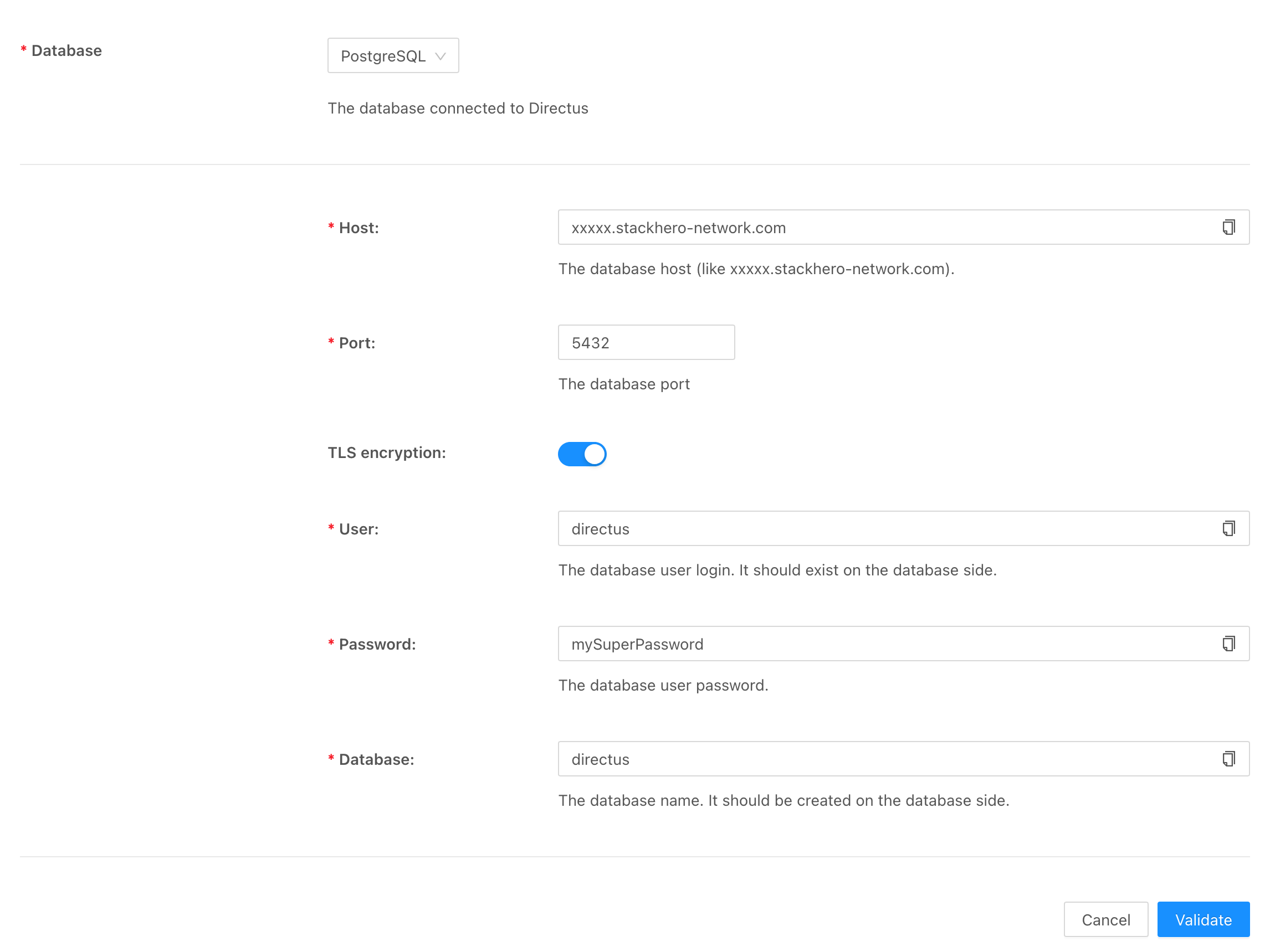 Configuration of PostgreSQL for Directus
Directus error "🚨 ER_NOT_SUPPORTED_AUTH_MODE: Client does not support authentication protocol requested by server"
If you see the error 🚨 ER_NOT_SUPPORTED_AUTH_MODE: Client does not support authentication protocol requested by server; consider upgrading MySQL client when using a MySQL server that employs the new caching SHA2 authentication, Directus will not be able to connect properly. The solution is to switch to the traditional native MySQL authentication.
-
If you are using phpMyAdmin, navigate to User accounts, select your Directus user, click Change password, and enter your password. Be sure to choose Native MySQL authentication as the password hashing method.
-
Alternatively, you can run the following SQL commands using the CLI. Replace
directuswith your username andmySecretPasswordwith your chosen password:ALTER USER 'directus'@'%' IDENTIFIED WITH 'mysql_native_password' BY 'mySecretPassword'; FLUSH PRIVILEGES;
Following these steps will help ensure that your Directus installation on Stackhero uses an external database designed for a production environment, offering improved performance and reliability.