 Mattermost: Getting Started
How to Get Started with Mattermost
👋 Welcome to the Stackhero documentation!
Stackhero offers a ready-to-use Mattermost cloud solution that provides a host of benefits, including:
- Unlimited users and channels.
- Unlimited and dedicated SMTP email server included.
- Customizable domain name secured with HTTPS (for example, https://chat.your-company.com).
- Effortless updates with just a click.
- Optimal performance and robust security powered by a private and dedicated VM.
- Available in 🇪🇺 Europe and 🇺🇸 USA.
Save time and simplify your life: it only takes 5 minutes to try Stackhero's Mattermost cloud hosting solution!
Configuring Push Notification Contents
By default, Mattermost sends push notifications that display the sender's username and the channel where the message was sent, without revealing the message content. If you want to include the entire message in the notification, you can adjust the settings in the System Console:
-
Open the System Console.
-
Navigate to Site Configuration > Notifications > Push Notification Contents.
-
Choose whether to send only the sender's name, the sender's name with the channel, or the full message.
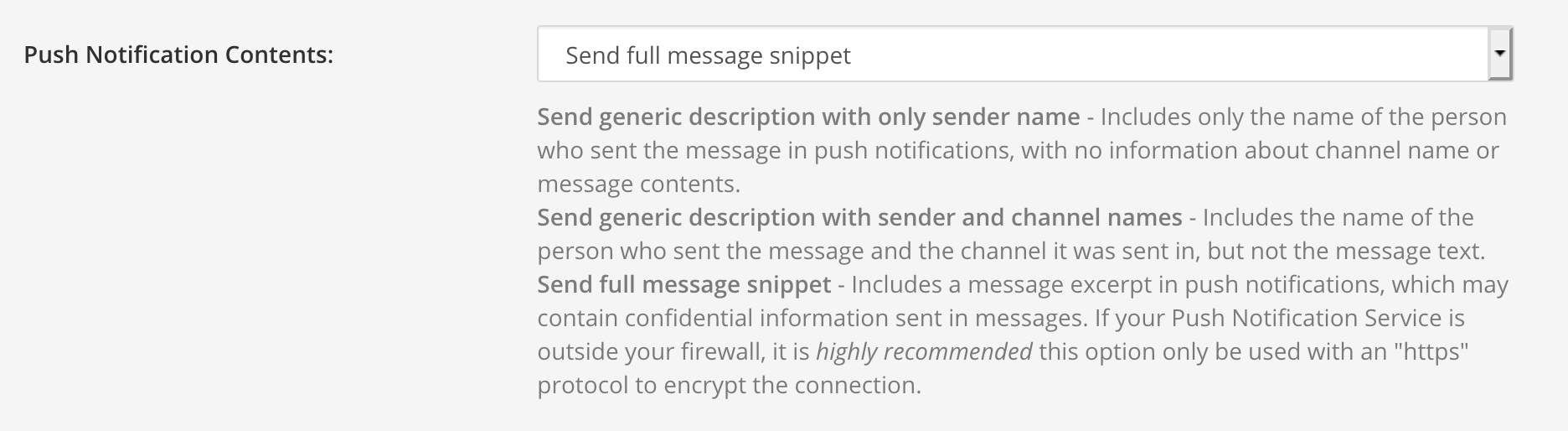 Push notification options
Advanced Mattermost Administration with mmctl
For those who want to dive deeper, the mmctl CLI provides powerful tools to manage and configure your Mattermost instance. You can find more details in the official documentation: https://docs.mattermost.com/manage/mmctl-command-line-tool.html.
Using the CLI mmctl with Mattermost
You have the option to install mmctl on your computer or run it using Docker. We recommend using Docker. To launch a container with an interactive bash shell, you can run:
docker run -it mattermost/mattermost-team-edition:latest /bin/bash
To log in, establish a connection with your server by running:
mmctl auth login -n stackhero https://<XXXXXX>.stackhero-network.com
You will be prompted to enter your Mattermost credentials. Once logged in, you can perform various administrative tasks with the mmctl CLI.
If you use two-factor authentication and encounter the error "could not initiate client: Invalid MFA token", include your MFA token (the 6-digit code from your MFA app) by running:
mmctl auth login -n stackhero --mfa-token <XXXXXX> https://<XXXXXX>.stackhero-network.com
After successfully authenticating, you might list all Mattermost users with the following command:
mmctl user list
Deleting a Mattermost User Using mmctl
Be cautious: this action will permanently delete the user and all associated data, and recovery is not possible.
While you can disable a user from the Mattermost System Console, deletion must be performed using the mmctl CLI. To delete a user, run:
mmctl user delete user@example.com
If you encounter the error "Permanent user deletion feature is not enabled. Please contact your System Administrator", enable user deletion via API support with:
mmctl config set ServiceSettings.EnableAPIUserDeletion true
Deleting a Mattermost Channel Using mmctl
You can delete a channel using the mmctl CLI.
Be cautious: this action will permanently delete the channel and all its data, and recovery is not possible.
To delete a channel, replace <TEAM> and <CHANNEL> with your specific values and execute:
mmctl channel delete <TEAM>:<CHANNEL>
If you encounter the error Permanent channel deletion feature is not enabled. Please contact your System Administrator., enable this feature by running:
mmctl config set ServiceSettings.EnableAPIChannelDeletion true
Disabling the Mattermost Enterprise License
Stackhero provides the Team Edition, which is the free and open-source version of Mattermost. Alternatively, you can purchase an Enterprise Edition license from Mattermost Inc. and run it on Stackhero.
If you inadvertently activated the Mattermost Enterprise Edition, you can disable it by following these steps:
-
Ensure that the
Enterprise Editionis disabled on the Stackhero dashboard. Log in to your Stackhero dashboard, select your Mattermost service, click on the Configure button, and disable theEnterprise Editionoption if it is activated. Mattermost Enterprise edition option in the Stackhero dashboard
 -
Log in to Mattermost, click the menu icon at the top left, select System Console, then Edition and License. Finally, click Remove License and Downgrade Server.
After completing these steps, your server will be reverted to the free Team Edition.
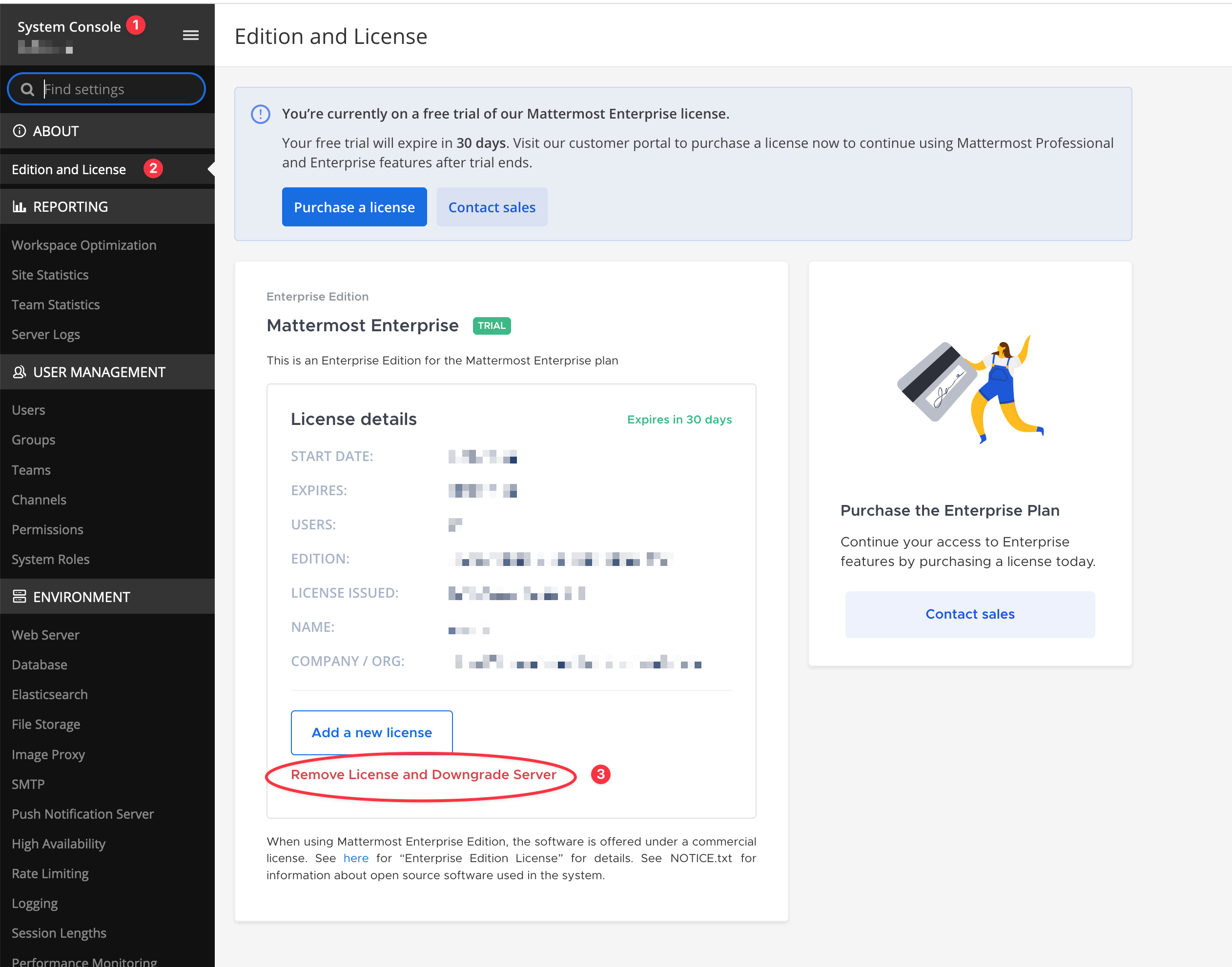 Remove enterprise license from Mattermost
Automatically Delete Messages After a Certain Time
Stackhero includes a unique feature to automatically delete Mattermost messages after a certain number of days.
For example, you can specify that you want to keep messages for 365 days (1 year) in public and private channels, and automatically delete messages older than 1 year. This is very useful to comply with local data retention laws or to simply reduce your instance disk usage.
To do so, go to the Stackhero dashboard, select your Mattermost service, click on the "Configure" button and then configure the "Auto-delete posts" part as needed.
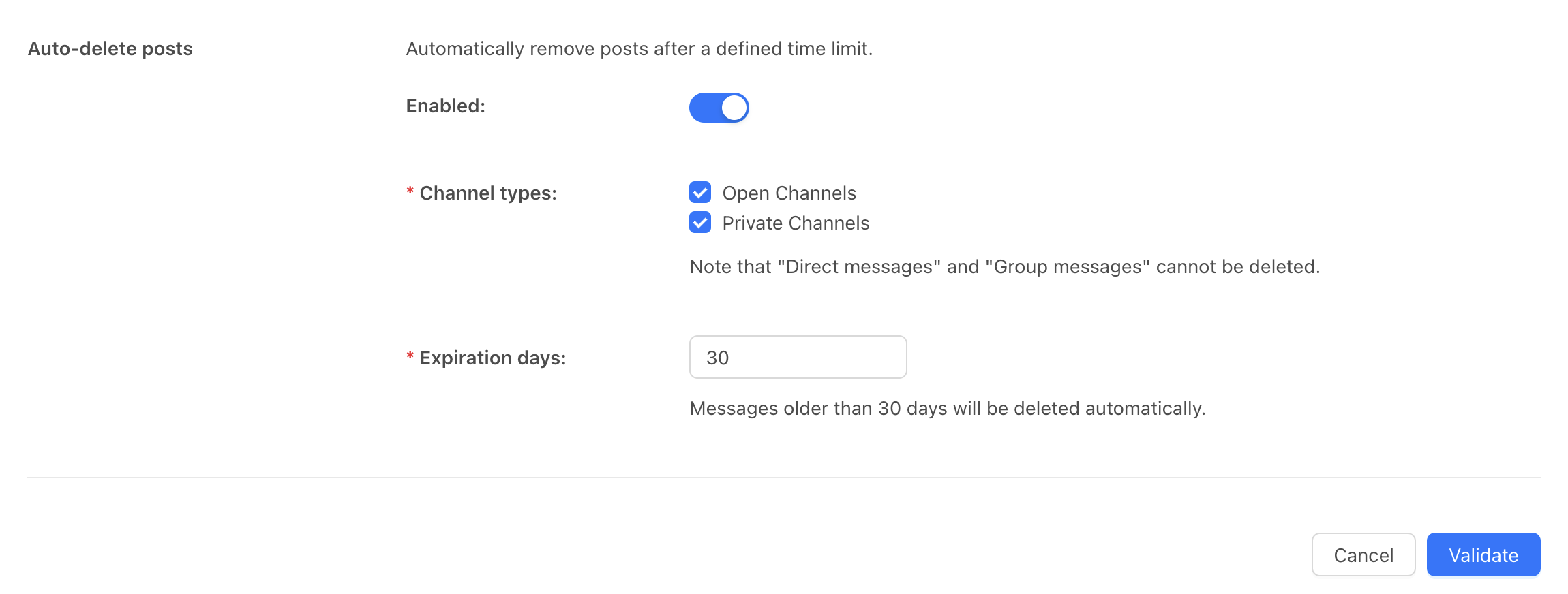 Mattermost messages auto deletion configuration