 Prometheus: Alerts
How Prometheus alerts work and how to configure them
👋 Welcome to the Stackhero documentation!
Stackhero offers a ready-to-use Prometheus cloud solution that provides a host of benefits, including:
Alert Managerincluded to send alerts toSlack,Mattermost,PagerDuty, etc.- Dedicated email server to send unlimited email alerts.
Blackboxto probeHTTP,ICMP,TCP, and more.- Easy configuration with online configuration file editor.
- Effortless updates with just a click.
- Optimal performance and robust security powered by a private and dedicated VM.
Save time and simplify your life: it only takes 5 minutes to try Stackhero's Prometheus cloud hosting solution!
Introduction to Prometheus alerts
Prometheus can analyze your metrics and trigger alerts based on rules that you define. With Stackhero for Prometheus, alerts are processed in two stages. First, Prometheus alert rules are evaluated and then Alert Manager takes over.
Everything is pre-installed and configured with Stackhero for Prometheus so you only need to perform minimal setup, such as adding your email address, to start receiving alerts.
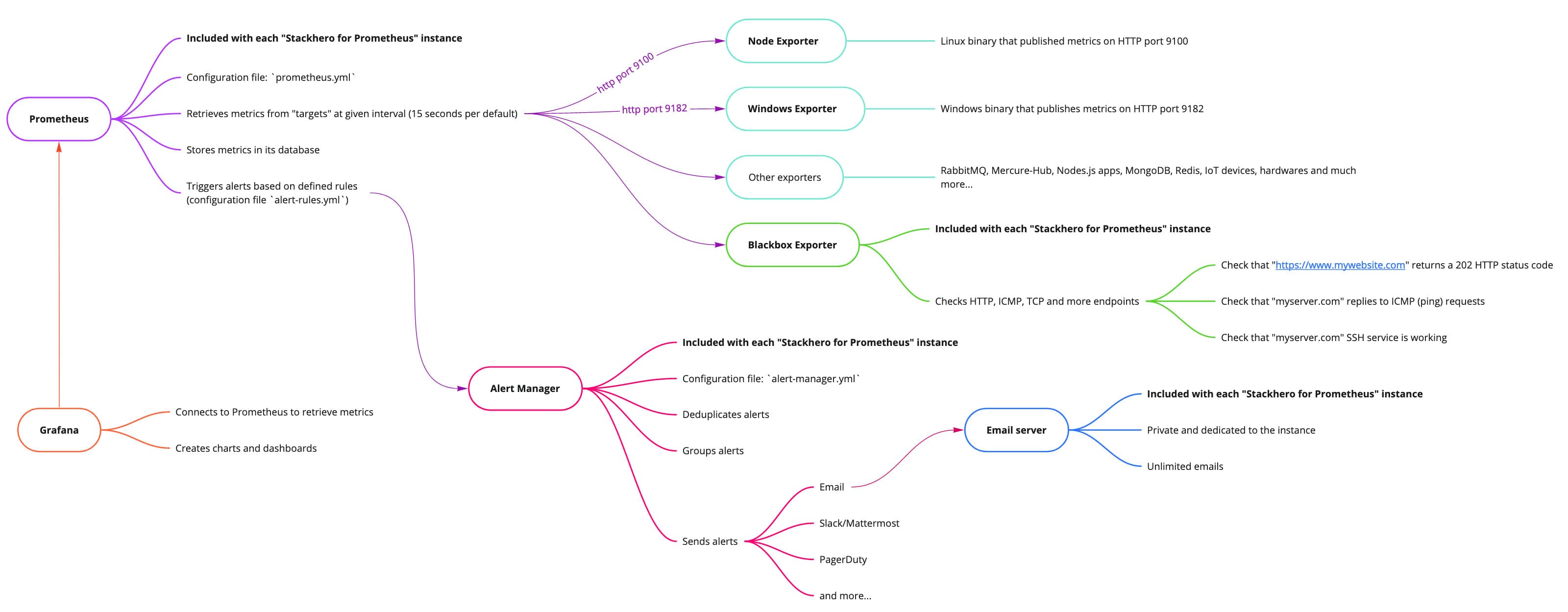 Big picture of Stackhero for Prometheus
Introduction to Prometheus alert rules
When Prometheus retrieves metrics, it evaluates them against rules specified in the rules-alert.yml file. These alert rules define thresholds and time windows for triggering alerts based on the metrics collected.
For example, an alert can be triggered if disk usage exceeds 80%. Additionally, rules can be set up to predict future conditions and send an alert if it estimates that disk space will be completely filled within the next 24 hours.
Another common use case involves detecting unusual behaviour. For instance, if there is a sudden spike in network bandwidth usage, an alert can be triggered to help detect potential distributed denial-of-service (DDoS) attacks or data exfiltration attempts.
Prometheus alert rules are included directly in the Prometheus server.
Introduction to Alert Manager
Alert Manager receives alerts that Prometheus alert rules have triggered. It deduplicates alerts, groups them, and then forwards them via various notification channels such as email, Slack, Mattermost, PagerDuty, and more. Its configuration file is alert-manager.yml.
For example, if a server slowdown occurs, Prometheus alert rules might trigger separate alerts for increased load and CPU usage. Alert Manager receives these alerts, groups them as they relate to the same server, and sends a single consolidated notification to the appropriate recipient or team based on your configuration.
If the slowdown continues, Prometheus will keep sending alerts but Alert Manager will suppress duplicate messages for a specified period to prevent flooding your team with redundant alerts.
You can also silence or completely inhibit alerts if needed. Once the underlying issue is resolved, a recovery message is sent to notify your teams.
This example illustrates a common scenario, but you can fully customize the setup to meet your specific requirements.
Alert Manageris not included by default with Prometheus. To save you time and simplify the process, we have integrated and configuredAlert Managerin Stackhero for Prometheus so you can send alerts in just a few minutes, with minimal effort.
Configuring Prometheus alert rules
You can adjust Prometheus alert rules by editing the rules-alert.yml file. To do this, access your Stackhero dashboard, select your Prometheus service, and click on "Prometheus alert rules configuration".
We have already added some default alert rules to your Stackhero for Prometheus instance, so you typically won't need to modify the rules-alert.yml file unless customization is required.
Below is an example of an alert that triggers if disk usage exceeds 90%:
- alert: "HostOutOfDiskSpace"
  expr: (node_filesystem_avail_bytes * 100) / node_filesystem_size_bytes < 10 and ON (instance, device, mountpoint) node_filesystem_readonly == 0
  for: 2m
  labels:
    severity: "warning"
  annotations:
    summary: "Host out of disk space (instance {{ $labels.instance }})"
    description: "Disk is almost full (< 10% left)"
    value: "{{ $value }}"
Here is another example that predicts potential disk space saturation within the next 24 hours:
- alert: "HostDiskWillFillIn24Hours"
  expr: (node_filesystem_avail_bytes * 100) / node_filesystem_size_bytes < 10 and ON (instance, device, mountpoint) predict_linear(node_filesystem_avail_bytes{fstype!~"tmpfs"}[1h], 24 * 3600) < 0 and ON (instance, device, mountpoint) node_filesystem_readonly == 0
  for: 2m
  labels:
    severity: "warning"
  annotations:
    summary: "Host disk will fill in 24 hours (instance {{ $labels.instance }})"
    description: "Filesystem is predicted to run out of space within the next 24 hours at the current write rate"
    value: "{{ $value }}"
You can find many additional alert rule examples on the Awesome Prometheus Alerts website.
Configuring Alert Manager
To configure Alert Manager, edit the alert-manager.yml file. In your Stackhero dashboard, select your Prometheus service, then click on "Alert Manager configuration".
Below, we present the basics. For further details, please refer to the official documentation.
Configuring Alert Manager: the receivers
The first step is to configure the receivers. Each receiver is a set of notification integrations (such as email, Slack, etc.) identified by a unique name.
For example, you might create a receiver named "critical_alert" for notifications triggered by alerts with a critical severity. Alternatively, you could create a receiver like "devops_team" to direct alerts to your DevOps team.
Setting a
receivername to "critical_alert" alone will not send alerts. The association between alerts and the receiver is made in theroutesconfiguration described below.
Once a receiver is defined, you will need to set up the corresponding notification integrations. These could include emails, Slack/Mattermost notifications, PagerDuty, Opsgenie, Webhook, and more.
Below is an example of a receiver named "critical_alert" that sends an email to two users and a Slack message to the #alerts channel:
receivers:
- name: "critical_alert"

  # Send critical alerts via email
  email_configs:
    - send_resolved: true
      to: "user@mycompany.com"

  # Send critical alerts to Slack or Mattermost
  slack_configs:
    - send_resolved: true
      api_url: "<your Slack or Mattermost API URL>"
      channel: "#alerts"
      title: "{{ range .Alerts }}{{ .Annotations.summary }}\n{{ end }}"
      text: "{{ range .Alerts }}{{ .Annotations.description }}\n{{ end }}"
You can define multiple receivers to handle different types of alerts. For instance, you might have one for critical alerts, another for error alerts, and another for other alert types.
Instances of Stackhero for Prometheus include a dedicated and private email server that allows you to send an unlimited number of email alerts at no additional cost.
Configuring Alert Manager: the routes
After configuring your receivers, you need to set up the routes. The routes tell Alert Manager how to handle incoming alerts from Prometheus and where to send them (typically to one of your pre-configured receivers).
Below is a basic example that directs alerts with a severity of "critical" to the receiver named "critical_alert":
route:
  routes:
    - match:
        severity: "critical"
      receiver: "critical_alert"
We have pre-configured some routes in the
alert-manager.ymlfile provided with your Stackhero for Prometheus instance. To start receiving alerts, simply update theemail_configsand/orslack_configssections with your notification details.