 Node-RED: MQTT server
How to connect Node-RED to Mosquitto MQTT server
👋 Welcome to the Stackhero documentation!
Stackhero offers a ready-to-use Node-RED cloud solution that provides a host of benefits, including:
- MQTT server included (Mosquitto).
- Full access to Node-RED admin UI.
- Node-RED Dashboard included.
- Unlimited and dedicated SMTP email server included.
- Effortless updates with just a click.
- Customizable domain name secured with HTTPS (for example, https://node-red.your-company.com).
- Optimal performance and robust security powered by a private and dedicated VM.
Save time and simplify your life: it only takes 5 minutes to try Stackhero's Node-RED cloud hosting solution!
Stackhero's Node-RED service includes a built-in MQTT server, designed to support seamless integration with IoT devices through secure and reliable communication channels.
To enable the MQTT server, navigate to the Stackhero dashboard, locate your Node-RED service, and activate the "MQTT Server" option in the service configuration settings.
Once activated, connections to the MQTT server can be established using port 8883, with TLS encryption ensuring secure communications.
Simple example: using Node-RED with the MQTT server
To help you get started, consider the following example that demonstrates how to connect Node-RED to the MQTT server. This example involves sending a message to a topic and receiving messages from it. You can download the flow example and import it into your Node-RED instance via the "Import" menu.
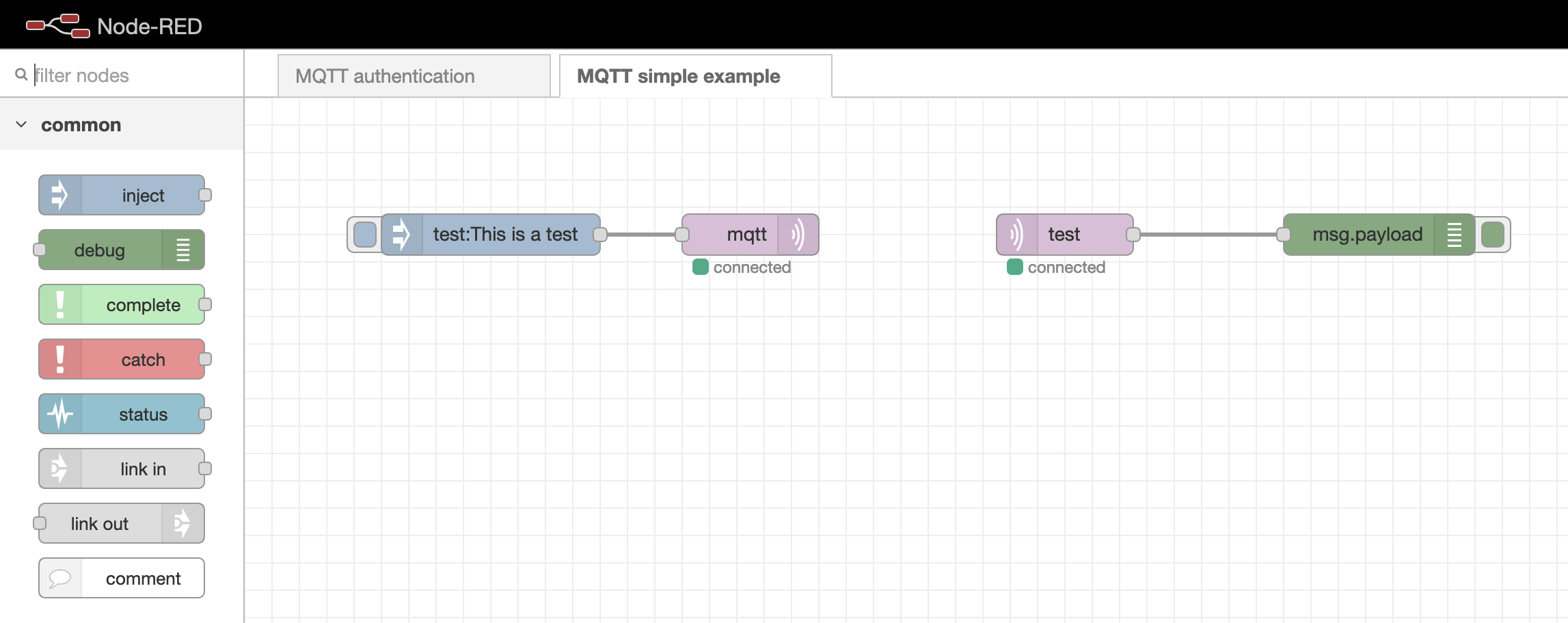 Simple example of connecting MQTT to Node-RED
If the MQTT nodes show a "connecting" status indefinitely, confirm that the
MQTT authenticationflow has not been removed. If necessary, download it here: mqttAuthenticationFlow.json. Import it into your Node-RED instance, configure theUsersnode by editing passwords, and remove comments as needed.
Authenticating MQTT users in Node-RED
User authentication is managed through a dedicated flow in Node-RED. You can access the "MQTT Authentication" flow directly from the Node-RED admin panel.
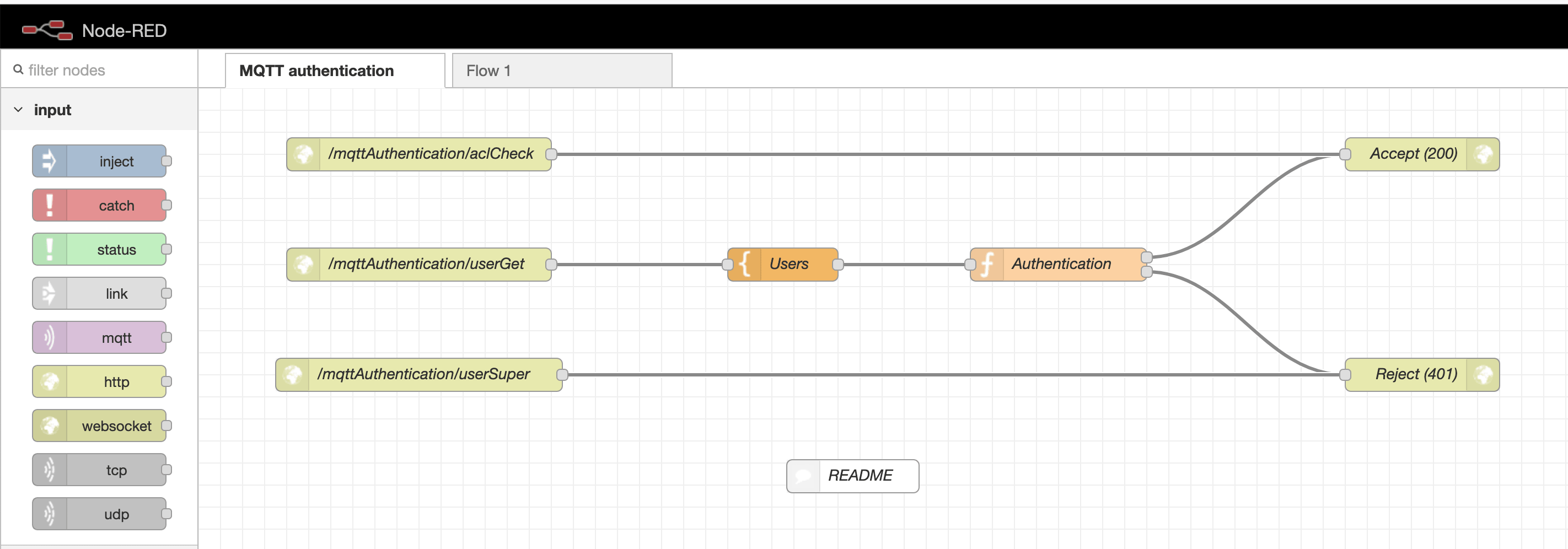 MQTT authentication flow
Within the authentication flow, locate the Users template node. This node contains an array for defining user credentials. You can add as many users as required for your setup.
Note: The
node-reduser is crucial for Node-RED's connection to the MQTT server. Ensure this user remains in the configuration.
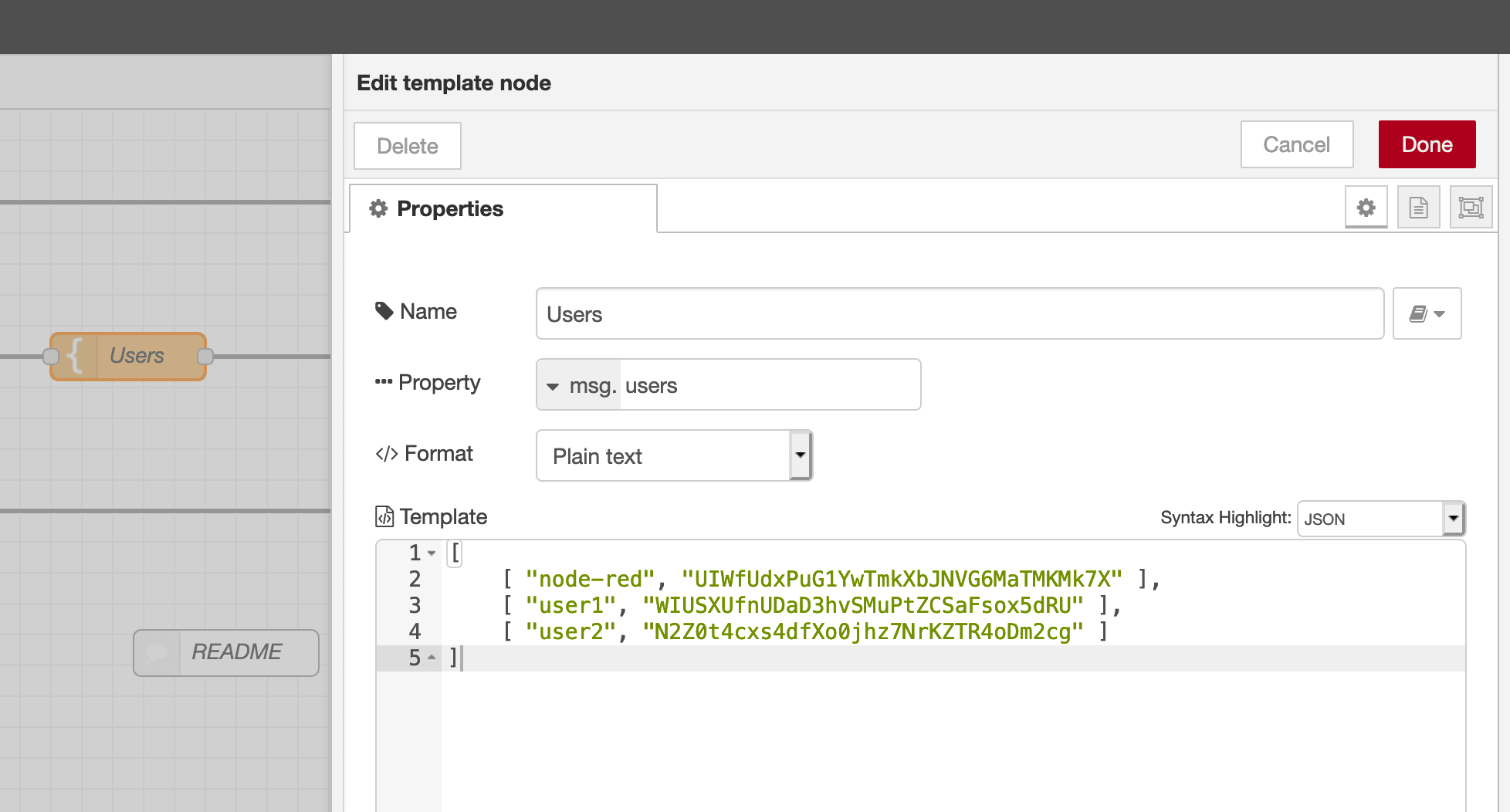 MQTT users node
Connecting to MQTT via WebSockets
You can connect to the Mosquitto MQTT server using either the MQTT protocol or WebSockets.
While the MQTT protocol is lightweight and ideal for IoT devices, it is not directly supported in web browsers. To bridge this gap, encapsulate MQTT traffic within the WebSocket protocol, which works seamlessly with Stackhero's services.
To enable WebSocket connectivity, activate the "WebSocket Support" option within the Stackhero dashboard. Then, configure your client with the server URL wss://XXXXX.stackhero-network.com:443/mqtt, substituting mqtts://XXXXX.stackhero-network.com with the correct WebSocket URL.
Choosing an MQTT library
For development purposes, we recommend the "MQTT.js" library. This robust JavaScript library is compatible with both Node.js and browser environments. You can explore it further on its official repository.
Browser-to-MQTT connection example via WebSockets
For guidance on establishing a browser-based connection to the MQTT server using WebSockets, refer to this repository: https://github.com/stackhero-io/mqttWebSocketGettingStarted. You can modify the src/index.html file to input your server's url, username, and password for your specific configuration.
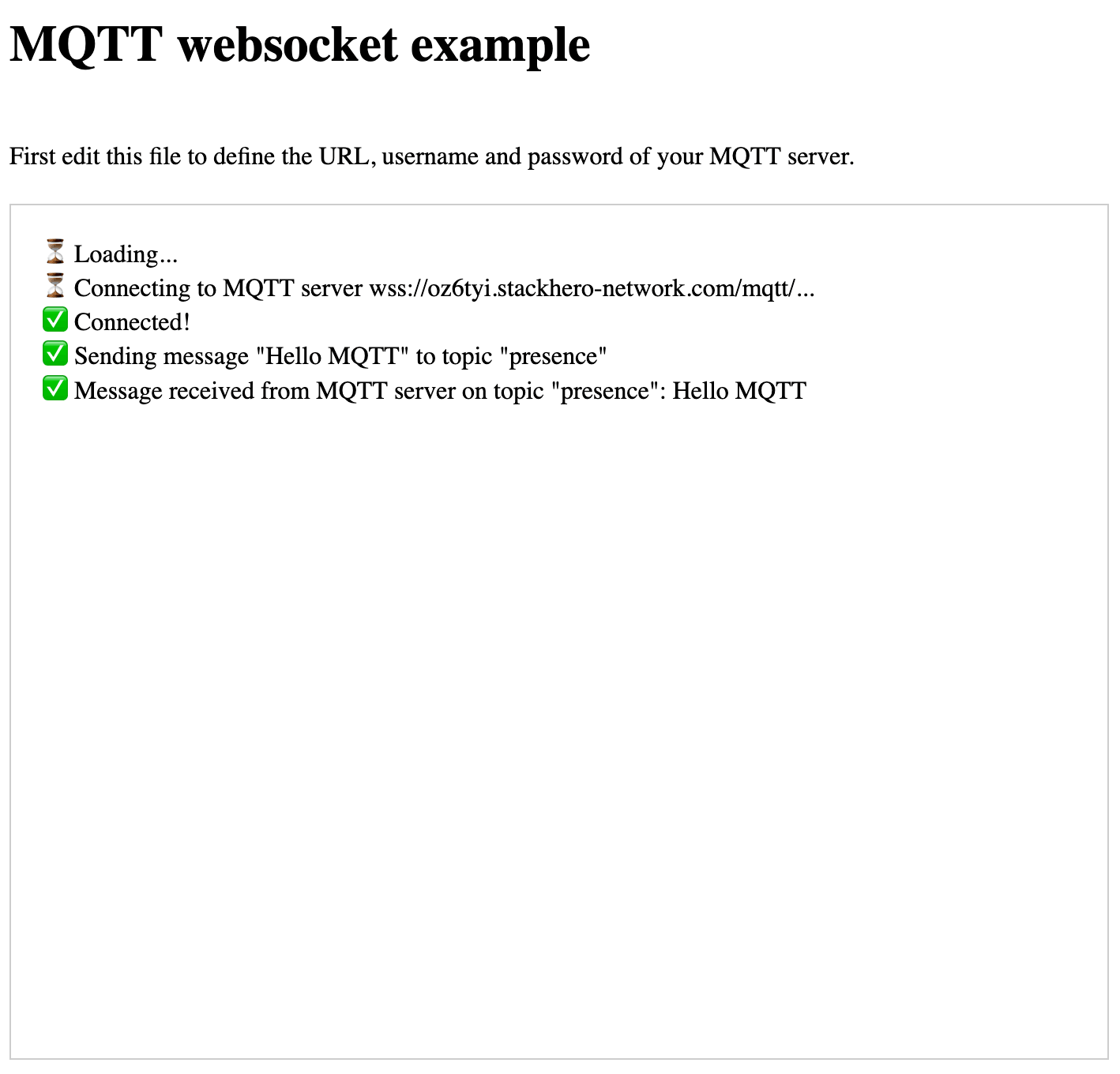 MQTT WebSocket example
Ensure that WebSocket support is enabled in the Stackhero dashboard to allow this setup to function as intended.